Images
AI assistant
The AI assistant in action: questions about the case, answers with sources, working documents and model choice — with a visible cost line before every AI action.
All recordings use fictional sample data – no real cases, people or file numbers. AI output can contain errors and does not replace legal advice.
Assistent im Chat
Images: 5AI Assistant: See Costs and Context Before You Send
Below the input field, the assistant of a case shows a cost line with the estimate “Expected Standard · counts 2×”; above it is the quota bar, below it the selected context “All documents”. A further notice reports that details are masked before sending, including a preview. This way you see before every question how heavily it uses your AI quota, and you can adjust model or context. Suggested tasks and questions on the case make it easier to start; the AI’s answers are suggestions that you review yourself before use.
Model Choice in the Assistant: Auto, Fast or Balanced
An expanded selector above the chat lists the models: at the top the default “Auto (best model per task)” with a short recommendation, below it tiers such as “Fast” and “Balanced” with speed and token indicators. Each entry carries notes on context size and EU operation. Before the question you decide whether speed, economical use or more depth matters more to you; the Auto default takes the choice off your hands and conserves the quota. A model you have fixed, by contrast, stays consistent throughout the conversation.
Check Panel Under the Answer: Sources, Statute Citations, Next Steps
Below an answer, the assistant collects its evidence: “2 sources cited”, a line with the basis (documents, case summary, confirmed source passages) and the number of citations of provisions that were checked and how many were not. In addition there are expandable areas for sources and steps, the line “Read · Checked · Open” with a cost indication and suggestions under “Sensible next steps”. Below are Copy, Export, Open in Canvas, File in case and Branch from here. This way you see what an answer rests on and what is still open; the answer itself remains a suggestion that you review.
Assistant: Start with Quick Tasks Instead of an Empty Input Field
The AI assistant starts with a selection of tasks instead of an empty field: for example pleading from case, deadlines from case, client update or view summary. You choose a task with one click, it refers to the case selected above, and on the left you find your earlier conversations about it. Below the input field, an estimate appears beforehand of how heavily the question uses your AI quota. All answers are suggestions that you review yourself before use.
Use “@” to Pull Documents and Parties of the Case into Your Question
An “@” in the input field opens a list with the documents of the case and the parties, here with the opposing party. You choose an entry, and your question refers specifically to that document or person. This makes it traceable what an answer is based on and spares long explanations in the text. Above are suggested questions on the case; below the field you choose, among other things, web research and model. The answers are suggestions that you review.
Agenten im Hintergrund
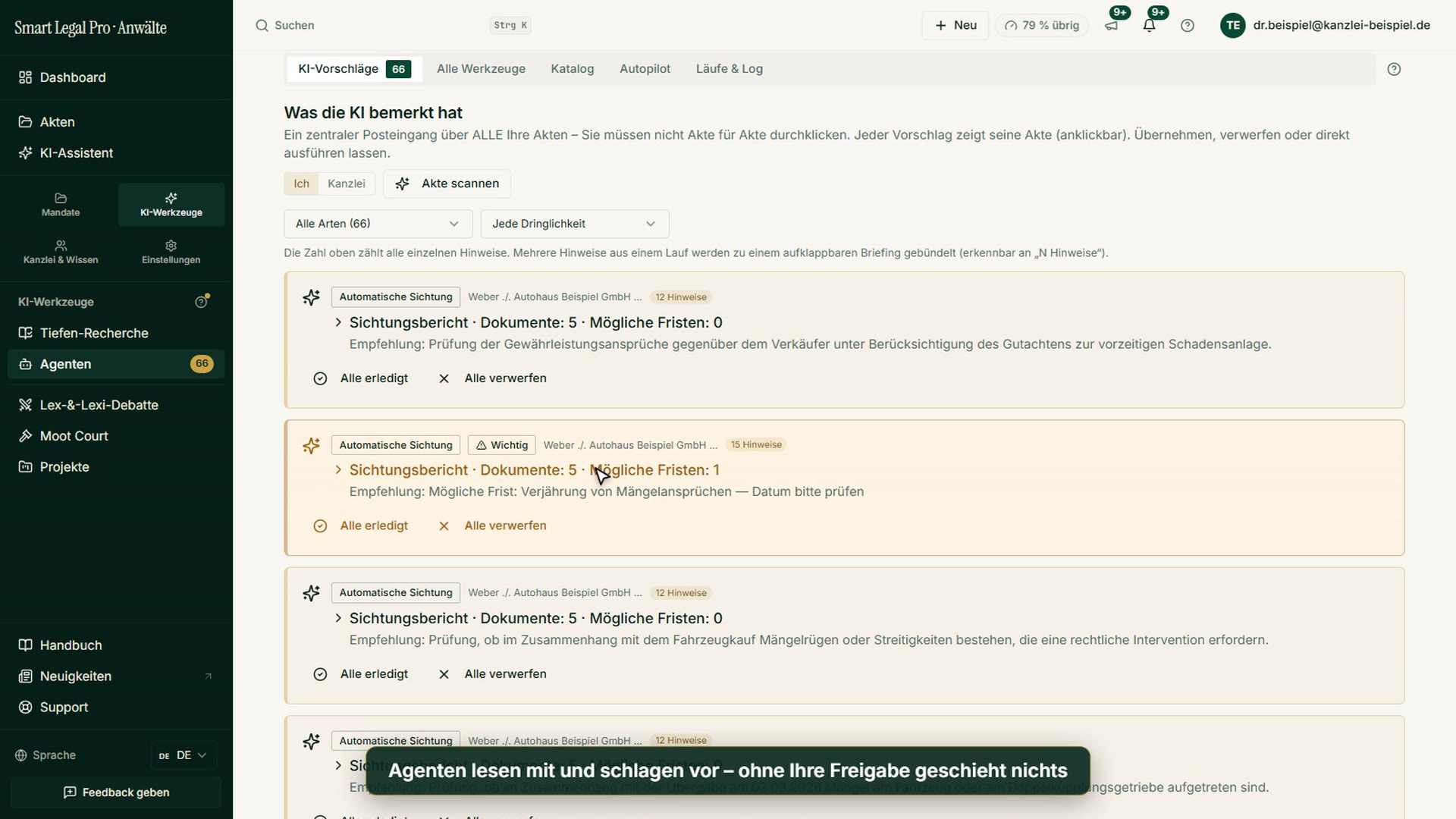
Images: 7Agents: AI Suggestions Across All Cases in One Place
The “AI suggestions” tab is the central inbox of the agents across all cases. At the top, a box explains that watchers observe cases and deadlines free of charge and that agents file their results only as suggestions; below it appears a bundled screening report for one case with a note about a possible deadline whose date you should check. You accept, complete or dismiss the suggestions, and nothing is entered or sent without your approval. This spares you from clicking through individual cases.
Agent Catalog: Flows for Case, Pleading and Hearing
The catalog lists the available agents and multi-step flows as cards, such as “Set up new case”, “Answer opposing pleading”, “Prepare hearing” and “Check completeness”. Each card describes the task and the result; you choose a case and start with “Start flow” or use “Set up automation” to decide whether the agent runs along on its own. In the completeness check, you can optionally have a follow-up question to the client prepared; sending remains your decision. This way you trigger recurring tasks with one click, without having to start again in between.
Autopilot: Set Once How Much the AI May Do on Its Own
The “Autopilot” tab of the Agents page sets, for all cases together, how much the AI may do on its own. At the top, a box reports on the watcher layer, which shows approaching deadlines, silent clients and open contradictions free of charge and without an AI run, and which can be switched off at any time. A notice below explains what you can and cannot expect from these alerts: only what is recorded in the case is reported. Your own deadline control explicitly remains your responsibility, and you set exceptions per case.
Autopilot Modes: On Request Only, Think Along or Prepare Ahead
Three cards are available: “On request only”, where the AI does nothing on its own, “Think along”, which screens new mail and presents suggestions, and “Prepare ahead”, which also prepares drafts. One click on a card sets the mode for all cases, and exceptions made per case remain in place. Each card states openly what consumes quota, and approvals stay with you. Below, you switch the automatic screening of new documents on or off, see what is planned, and can pause the preparing ahead for one week.
AI Suggestions: Briefing Expanded – Accept, Later, Done, Dismiss
The “What the AI has noticed” page collects the notices from the background agents of all cases in one place; several notices from one run are bundled into an expandable briefing. Each suggestion names its case and its origin, flags low certainty and shows how many details were masked before reaching the AI. You open the source, accept a suggestion as a step, postpone it, tick it off or dismiss it. A recognized role is saved only after your confirmation, and a deadline date remains marked as to be checked.
Tool Search: Find Every AI Task with a Sample Assignment
The “All tools” tab lists the AI tasks in one place, organized by areas such as Proceedings or the Lex & Lexi debate. The search field on the right filters the cards; here the term “hearing” leads to hearing preparation and to the negotiation coach. Each card describes the task, gives a sample assignment and indicates from which plan it is available. With “Run” you start the task as a background agent, and “How it works” lets you read up beforehand.
To the feature: Proactive agents →To the feature: Assistant workshop →
Run Log: Duration, Steps, Quota and Log of Every Agent Run
The “Runs & log” tab lists the agent runs with their status; on the right is the report for the selected run, here a completed summary. It shows duration, number of steps, quota used and the changes made in the case, followed by a step log with the documents read. A notice states how many details were masked before reaching the AI, and “Run again” starts the run once more. This makes it possible to trace what the AI did and what it consumed.
To the feature: Proactive agents →To the feature: Conflicts & Compliance →
Tiefen-Recherche
Images: 2Deep Research: Ask a Legal Question, Choose the Level of Detail
The “Create opinion” window of deep research contains a large field for your legal question, a dictate button and several sample questions to click. Below, you choose the level of detail Standard, Detailed or Comprehensive; each card states page count, duration and the number of research units. A case is not needed for the question, and the more concretely you phrase it, the more reliable the opinion becomes. According to the note, the page count is an upper limit, not a target; the result serves you as a working basis with sources to verify.
Research in the Case: Sourced Opinions with References
In the case, the “Research” tab opens the “Opinions” subpage with the headline “Sourced legal opinions for this case – every statement with a source, every source with a verification note”. On the right is the “Create opinion” button; below, a finished opinion appears as a row with title, level of detail “Detailed” and status “Done”, which can be expanded. Next to it is the research log. This way the results sit where the case sits; you check the sources and statements of an AI opinion yourself.
Ergebnisse der Akte
Images: 1Conversations & Results: Everything the AI Produced for the Case
The “Conversations & results” tab collects everything the AI has produced for this case, and your conversations about it. With filters such as Summary, Runs, Opinions, Conversations, Debates, Moot court and Drafts you narrow the list; the image shows three Lex & Lexi debates with date, the status “Open” or “Done” and the button “Continue” or “Open”. Viewing costs nothing. This way you find earlier work again without restarting it.
To the feature: AI assistant & Lex & Lexi debate →To the feature: Lex & Lexi debate →
Mobil unterwegs
Images: 4Agents on the Smartphone: Suggestions and Autopilot
On the smartphone, the agents page shows the heading, the case selection, the note on the agent quota and the tabs AI suggestions, All tools, Catalog, Autopilot and Runs & log. Below, the box “How agents work for you” explains that watchers observe free of charge and that nothing is entered or sent without your approval. With “Have a case reviewed” you start a screening. This way you read and review the agents’ suggestions on the go as well.
Deep Research on the Smartphone: Dictate the Legal Question
On the smartphone, the “Create opinion” window opens as a large card with the “Your legal question” field, a dictate button and several sample questions to tap. A note explains that the opinion becomes more reliable the more concretely you state facts, legal system and purpose. This way you commission research on the go, also by voice. The result is an opinion with citations that you review yourself.
Mobile: Assistant with Quick Tasks on the Smartphone
The AI assistant on the smartphone works with a case: at the top you see file number and status, below it quick tasks and suggested questions on the case, such as a short overview or the question of who is who in the case. You tap a question or write your own at the bottom; via “@” you refer to documents and parties. Above the input field it states how the run will probably be counted, below it the note to check results and citations on your own responsibility before use. This way you quickly start into the case on the go as well.
Autopilot on the Smartphone: Set the Agents’ Automation
The “Autopilot” tab of the agents page sets how much Smart Legal Pro may do on its own. The setting first applies to all your cases, and you can set individual cases differently. At the top the page shows the selected automation and the usage, and below a note explains the watcher layer, which observes approaching deadlines and open follow-up questions free of charge and without an AI run. The watchers’ notices are prompts that you assess yourself, and the setting can be switched off.
More categories
- Case file & facts 40
- Deadlines 13
- Pleadings & editor 20
- Lex & Lexi 19
- Contracts 15
- Firm & DMS 24
- Research & knowledge 20
- Client portal 11
- Settings & firm 8
- Understanding proceedings 28
- Letters & replies 13
- Creating contracts 11
- Checking a contract 9
- AI legal information 7
- Calculators 9
- Tools 28
- Legal knowledge 6
- Account & credits 6
- The website 40

Try it yourself
Start free, upload a letter, check a deadline – no credit card needed.

