Images
Case file & facts
The case file as a workspace: a cockpit with the next action, facts with source and passage, parties, evidence and chronology. See how documents turn into a verifiable state of the file.
All recordings use fictional sample data – no real cases, people or file numbers. AI output can contain errors and does not replace legal advice.
Akten finden & anlegen
Images: 6Case List: All Cases of the Firm with Filters and Notices
The “Cases” overview lists every case in one row with file number, title, attention notices, client and last activity. With the search and the filters for status, area of law and lawyer you narrow the list, and with “New case” you create a matter. The label “Sample case” marks prepared cases on which you try out the functions without your own client data. This way you keep track of which case needs attention even with many mandates. See also the column selection, with which you adapt the table.
Customize the Case List: Show and Hide Columns
The “Columns” button opens a list of the visible columns of the case list. File number, attention, client and last activity are ticked, while opposing party, area of law, responsible lawyer and status can be switched on. With a click on an entry you select or deselect the column. This way every firm sees the details it needs day to day, without the table becoming overcrowded. With “Restore default” you return to the basic view.
Create a New Case: Only the Label Is Required
The “Create new case” dialog asks only for a label; client, opposing party and file number are marked optional and can be added later. You choose the client via the search or create them directly as a new client. Under “More details” are area of law, legal system, AI language and matter type, in the image prefilled with Germany and AI language German. Optionally, you start recording an initial consultation right after creating. This way a case is created with few entries, and you upload the documents in the next step.
New Project: View Several Cases Together in the Chat
Shown is the “New project” dialog in the AI tools area. You assign a title, can store a project instruction for every chat in the project and a note of your own, and optionally choose a template that only prefills texts. After creating, you add the cases that belong together, such as several similar proceedings. The notes in the dialog make clear that project instructions replace neither law nor professional rules and that a template creates no deadlines and no automatic actions. In the project chat the assistant can then look at the connected cases together.
New Case with Conflict Note and the Path to the First Evaluation
The header of a newly created case shows title, file number and status, and directly below it the note “Conflict check” with a date. It proves that the name comparison against your previous cases ran on creation. The case is still empty and explains the next step: upload a document, the AI screens it, then you start facts and summary with one click. Beforehand you see how much quota this uses, and the result stays saved with the case.
To the feature: The case file that thinks along →To the feature: Conflicts & Compliance →
Create a Project: Title, Project Instructions and Note for Several Cases
In the “New project” dialog you create a project that bundles several related cases. You assign a title, can store project instructions for every chat in the project and note a memo that the assistant reads along. A template fills only texts, no deadlines and no automatic actions. After creating, you add the cases and can ask questions across several cases in a joint chat. The project instructions replace neither law nor professional rules.
Cockpit & Sachverhalt
Images: 8Case Header: Court, Amount in Dispute, Hearing and Status at a Glance
The header of the case shows the title and file number at the top, below them parties, opposing counsel, court, amount in dispute and the next court hearing with location. Further down are the procedural status with instance, the type of proceedings, the phase and the side you represent. The “Next” line suggests tasks such as preparing the hearing, organizing evidence or talking the hearing through, and “Contact client” and the search within the case are also here. This way you see at a glance where the proceedings stand without opening a document. The case shown is a fictitious sample case with entirely invented parties.
Cockpit: “And now?” Names the Next Action in the Case
The case cockpit begins with a single highlighted recommendation: in the example, it is the response to the statement of defense as a deadline set by the court, with the button “To the deadlines”. Below, it shows what comes next, such as a pending follow-up question from an agent, a pleading ready to be finalized and the next court hearing. On the right, “Deadlines & appointments” bundles the deadlines and follow-ups of the case; a detected deadline waits there for your review and is monitored only after you adopt it. This way you do not have to search for what to do next. See also the deadline register of the case.
Next Steps: Decisions, Deadlines and Suggestions for the Case
The “Next steps” tab collects what in the case is waiting for a decision: follow-up questions from an agent that you answer with yes, no or your own answer, and deadline suggestions that you approve or reject. Below are the open deadlines, suggestions for tidying up duplicate facts and AI suggestions with confidence indicated. The note “Nothing is carried out without your decision” makes clear that nothing is entered without your confirmation. With the “Stop” option you halt an agent. See also the cockpit, which puts the most important action first.
To the feature: The case file that thinks along →To the feature: Deadlines & court prep →
AI Summary of the Case with Status and Notice of New Documents
In the “Facts of the case” tab is the AI summary of the case: an understandable text on the matter with status, scope setting and the buttons Edit, Versions, Update, Export and Copy. A yellow notice reports when new documents have been added since the last summary and offers “Update now”. The summary is also used by the assistant, the Lex & Lexi debate and agents without being recalculated. It is marked as an AI draft: you check facts against the sources, and the legal classification is a suggestion. See also the fact list with sources.
Note, Relevant Date and Master Data of the Case
In the “Note & details” tab, you first record your own note on the case; the AI does not overwrite this text, and summary and deep research take it into account first. Below, the case suggests a relevant date from the documents, which you can set with “Adopt”, with the note to check the date. Parties detected in the documents, such as the opposing party and opposing counsel, are saved only after your click. At the bottom you maintain the master data such as matter type, jurisdiction, area of law, case language, client, court and instance. This keeps the legal classification of the case traceable in one place.
Case Analysis: Figures, AI Assessment and AI Settings
The “Analysis” tab shows at the top when the AI works on the case: relationships and case analysis run automatically, on button click or not at all, and in the image “On button click” is selected. One line states how many documents the analysis is based on, how many are not taken into account and how much quota a run costs before you start it. The case analysis summarizes the holdings in figures, such as facts, relationships, points needing review and contradictions; the AI assessment of the lawsuit is marked as a suggestion that you confirm in the procedure bar. Documents excluded from the AI are shown separately. See also the “Facts & evidence” tab.
Variants: Main Path and Thought Experiment Side by Side
The “Variants” tab places case states and alternative strands of the analysis side by side: the main path with its initial assessment on the left, a branch B on the right. Branches are thought experiments, as the note in the image states, and do not feed into answers, summary or firm memory. This way you can play through how the case would develop under a different assumption without touching the actual state of the case. You find the court proceedings themselves in the “Proceedings” tab. In addition, the image shows the case header at the top with the next recommended action.
Fakten & Belege
Images: 14State of Knowledge of the Case: Checked Facts, Contradictions, Open Points
The box “State of knowledge of this case” summarizes in figures how far the fact base has come: how many facts you have checked or pinned, how many are still open, to be reviewed or to be clarified, plus confirmed and unchecked relationships, contradictions and suggestions for parties. Below, the case names the documents from which no fact has yet been obtained and shows a document excluded by the AI separately. In the “Tidy up the case file” block you decide on open duplicates. A note explains that “Source found” is only the AI’s comparison with the document and that a fact counts as checked by you only once you confirm it.
Fact List with Origin, Confidence and Source
The fact list shows each fact of the case as a row with label, value, category, source document and the party the information comes from. Chips state whether a source was found and how high the AI’s confidence is; “Confirm” adopts the fact as checked by you, and “Source” opens the passage in the document. With search, category, status and party filters as well as grouping, you quickly find the detail you are looking for, and with “Add fact” you add your own. This way you know for every detail where it comes from and whether it is supported. See also the table view.
Facts as a Table: Sort, Filter and Compare
The same facts appear here as a table with the columns category, label, value, origin, confidence and status. The column headers for category, label, value and confidence can be used for sorting, and the filters above the table narrow down by category, status and party. The table is suited to comparing many dates, amounts and file numbers side by side. Markers such as “Source found” or “From older version” show the review status per row, and with the checkboxes you select several facts at once.
One Click on “Source” Highlights the Passage in Yellow in the Document
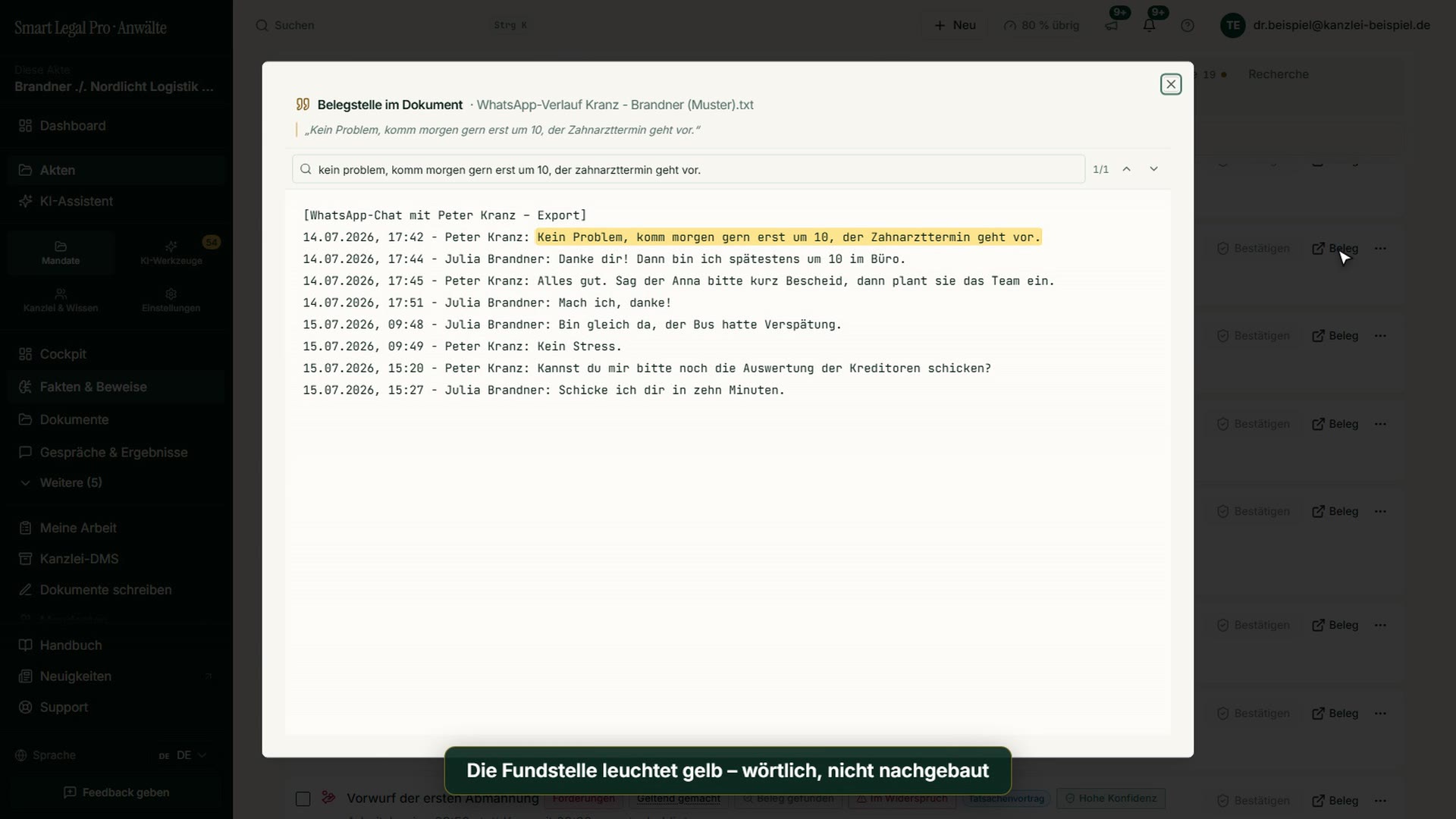
After a click on “Source” for a fact, the source passage opens in the original document. In the example it is a WhatsApp chat in which the underlying message is highlighted verbatim in yellow. The quotation is shown above the passage, and in the search field below you can switch between several hits with the arrows. This way you check every detail from the AI against the source instead of relying on a summary, and you immediately recognize the context of the passage. See also the “Evidence” tab.
Contradictions in the Case: Warning Letter vs. WhatsApp Approval
With the status filter “In contradiction”, the fact list shows only three entries: the allegation in the warning letter, the contested start of work and the approval of the later start of work via WhatsApp, each with a source button and the marker “In contradiction”. The software compares statements from different documents and reports where they do not fit together; chips such as “Factual allegation” classify the detail. This way you recognize early where statements contradict each other and where you should follow up. Whether an allegation holds is for you to assess. Below the table, “Continue working” offers, for example, a pleading based on this fact base.
Case Parties: People and Organizations with Role and Source
The “Parties” view lists the people and companies of the case line by line, compiled from the facts in the documents: in the example a managing director, a head of HR and a witness, with role, side (such as defendant’s side or third party) and origin in the document. Recommendations such as “Adopt as opposing party” are only prefilled: nothing is saved until you click, and you can undo it immediately. With “Source passages” you expand the evidence for each person. This keeps the list of parties of the case verifiable. All people and addresses shown are entirely invented.
Relationship Graph: The Facts of the Case as a Network of Connections
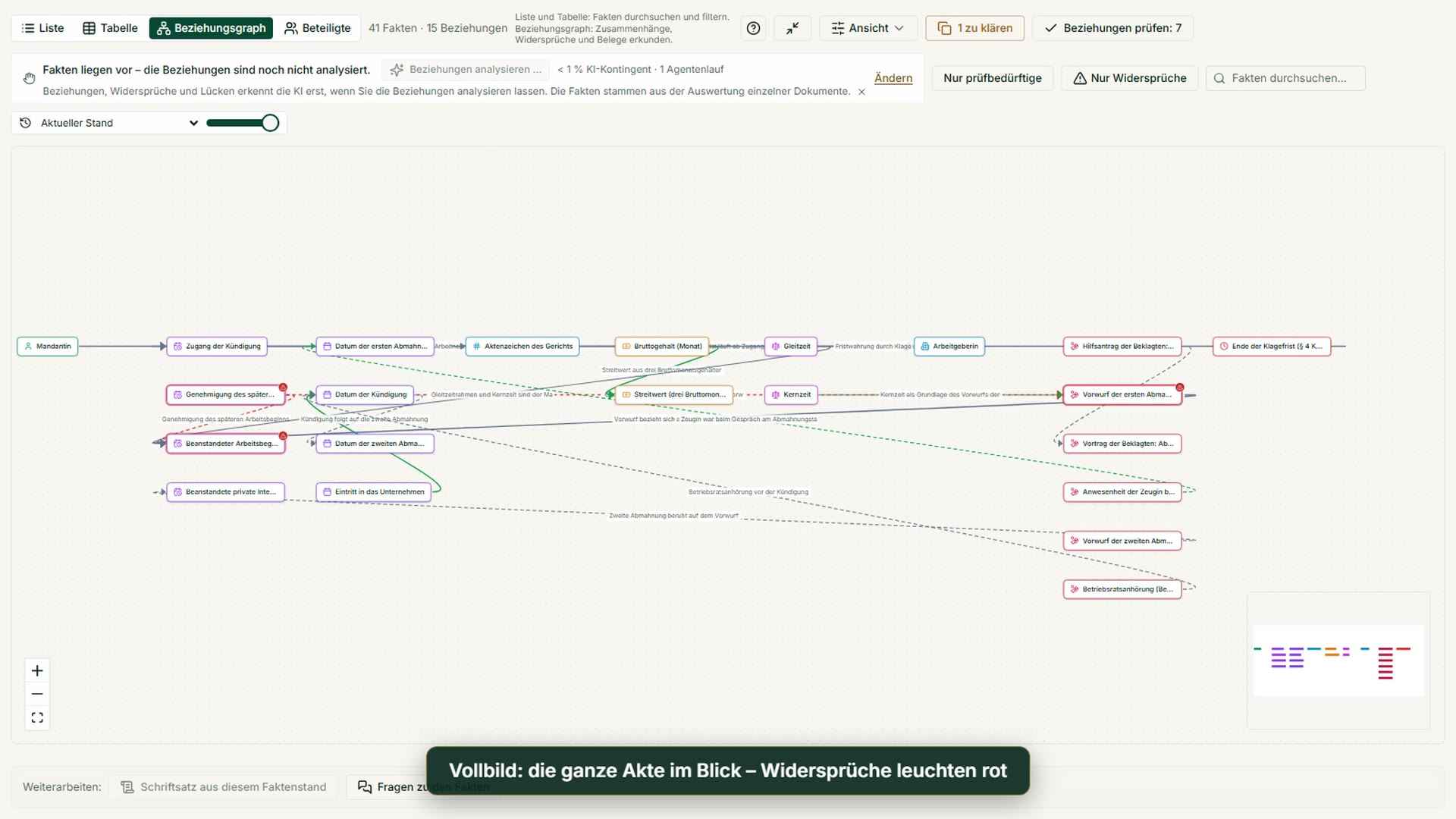
The relationship graph shows the facts of the case as a network: boxes stand for dates, amounts, people or claims, and labeled lines for connections such as “Dismissal follows the second warning”. Colored and dashed lines distinguish the type of connection. With “Needs review only”, “Contradictions only” and the search you narrow the network to what matters, and the slider selects an earlier state of the case. The relationships are suggestions from the AI that you review; “Review relationships” shows the open cases. List, table and parties are available alongside as alternatives.
Relationship Graph: Facts as Cards, Connections as Labeled Lines
The relationship graph shows the facts of a case as cards: dates, amounts, legal concepts, people and allegations, each with its own symbol and color. Lines between the cards carry a label that names the connection, and red dashed lines with warning signs mark contradictions. At the top you switch between list, table, relationship graph and parties and see how many facts and relationships exist. A small overview at the bottom right helps with orientation, and the relationships themselves are AI suggestions for you to review.
Zooming In: Every Card a Fact, Every Line a Named Relationship
When you zoom in, the labels become readable: each card is a fact, each line a named relationship, such as “Dismissal follows the second warning”. You zoom with the mouse wheel, move the view by dragging, and the buttons at the bottom left zoom or show everything again. Red dashed lines with warning signs mark contradictions that you should review. This way you read a set of facts step by step, without building a chronology by hand.
Click a Fact: Card with Confidence, Source and Neighborhood
A click on a fact opens its card on the right: value (here a date), category, the rating “High confidence” and the note “Source found”. With “Show neighborhood only” you hide everything that is not connected to this fact, “Open source” shows the passage in the document, and “Discuss in assistant” leads to the question to the assistant. Confirm, Pin, Edit and Dismiss are available on the same card. This makes every fact verifiable down to its source.
From the Graph to the Document: The Source Passage Highlighted in Yellow
“Open source” leads from the fact straight into the original document: here an employment contract opens, and the passage on flextime is highlighted in yellow. At the top is the verbatim quotation, below it a search field with hit count and arrows to page on through the document. This way you check without a detour whether the detail in the graph actually reads that way in the document. The example shows a sample document with invented details.
Needs-Review Facts Only: Where to Start Reviewing the Case
The “Needs review only” filter hides in the graph all facts that need no decision. What remains are cards such as the approval of the later start of work or the allegation of the first warning, partly with warning signs. The cards become larger and easier to read as a result, and the lines show how they connect. A fact may need review when certainty is low, a source is missing or there is a contradiction. This way you decide where to begin reviewing the case.
Contradictions Only: Where Statements in the Case Do Not Fit Together
With “Contradictions only”, only the facts marked as contradictory remain. Here there are three cards that carry a warning sign and are connected by red dashed lines: the approval of the later start of work, the contested start of work and the allegation of the first warning. The line names the relationship, here the approval of the later start of work. After clicking a fact, you check the passage in the document with “Open source”, because the assignment is an AI suggestion.
Beweise & Verlauf
Images: 4Evidence: Which Document Supports Which Allegation
The evidence overview sets, for each allegation in the case, the supporting sources on the left against the contradicting sources on the right, with strength such as “strong”, “medium” or “weak” and the status “available”, “missing” or “weak”. Where a source is missing, the software says so openly: in the example, the note says that the defendant submits no records or witnesses for the allegation. With “Add relation” you add relationships yourself; according to the note in the image, the AI suggests and you confirm, and only confirmed rows flow into the assistant. Filters such as “Disputed” or “Without exhibit/source” direct attention to the gaps.
Case Chronology with Source and Confidence per Event
The chronology arranges the dated events of the case on a timeline: each entry with date, status “confirmed”, confidence, short description, source document and the party the information comes from. With the “Current state” selector you look back at an earlier state of the case, and the party filter shows only events of one side. This lets you see at a glance in which order the case developed, in the example from the approval via WhatsApp through the warning letters to receipt of the dismissal. The source document is linked in each case. See also the case timeline.
Case Timeline: What Each Document Changed in the Case
The case timeline shows per document which facts it introduced into the case and which earlier details it superseded; in the example, a warning letter with three introduced facts. With the “Document” and “Cut-off date” selectors you decide which document and which point in time you look at, and the tabs Impact, With/without and Cut-off date switch the perspective. The view is deliberately read-only; you make changes under “Changes & undo”. This lets you see how a single document changed the state of knowledge and trace where a detail comes from.
Closing a Case: Set the End of the Mandate, Retention Period Shown
On closing, a dialog asks for the end of the mandate, meaning the end of the engagement, which is prefilled and can be changed. It reports whether anything is still open, here no open deadlines, requests or portal accesses. Below, it states the retention period, in the image six years from the end of the calendar year in which the engagement ends, with a reference to the BRAO (German Federal Lawyers’ Act). The case is archived and no longer counts toward the case limit, nothing is deleted, and you can reopen it at any time.
To the feature: The case file that thinks along →To the feature: Conflicts & Compliance →
Mobil unterwegs
Images: 3Case List on the Smartphone: Cards with File Number and Status
On the smartphone, the case list shows each case as a card: title, file number, status “Open”, area of law, responsible lawyer, date of last activity and labels such as “Sample case”. At the top are the search, a filter button and “New case”, at the bottom the navigation with Dashboard, Cases, AI assistant, My work and Menu. This way you open a case on the go or shortly before a hearing. The cards show the same details as the table on the computer.
Case on the Smartphone: Header with File Number, Court and Procedural Status
The case on the smartphone begins with the case header: title, file number to copy, status, buttons for the AI assistant and “Contact client” as well as the search within the case. Below follow court, amount in dispute, hearing and the procedural status with instance, type of proceedings, phase and represented side. The details are arranged one below the other so that they stay readable on the narrow screen. This way you have the key data with you when you get a question about the case on the go. Via the bar at the bottom you reach Dashboard, Cases and AI assistant.
Mobile: Facts with Source Button on the Smartphone
The case’s fact list on the smartphone shows each fact as its own card with label, category, source and confidence chips, value and source document. On each card are “Confirm” and “Source”, with which you open the passage in the document, as well as a menu for further actions. At the top you switch via tabs between Cockpit, Facts of the case, Next steps and other areas of the case. This way you check details against the source on the go as well, for example before a phone call with the client.
Nach der KI-Auswertung
Images: 5Case Cockpit After AI Evaluation: Open Points and Quick Start
The cockpit of an evaluated case shows the case name, file number and status at the top; below are the tabs from Facts of the case to Client & portal with figures on next steps, facts and documents. The “Now” block states how many open points are waiting, with the recommendation “To the list”; deadlines and appointments follow on the right. Below, quick actions start, such as AI assistant, record meeting, Lex & Lexi debate or write documents. After the evaluation you see in one glance what is pending; the AI results are suggestions that you review.
Review Facts with Source, Confidence and Status
The “Facts & evidence” tab lists the facts drawn from the documents with category, the status “Source found”, a confidence value and a “Confirm” and a “Source” button each. At the top, “Tidy up the case file” bundles possible duplicates and identical names in several roles as suggestions that you decide on. A note explains that “Source found” is only the AI’s comparison with the document and that a fact counts as checked by you only through your confirmation. Filters and search narrow the list.
One Click on “Source” Highlights the Passage in the Document
After a click on “Source”, a window opens with the original text of the document; the passage is highlighted in yellow, and at the top are the quoted phrase and a search field with hit navigation. In the example, the sentence on the repair costs is supported in a notice of defects. You do not have to search the document yourself to see where a fact comes from. Afterwards you close the window and confirm or correct the fact.
AI Summary of the Case: Draft with Status and Basis
The “Facts of the case” tab shows the AI summary of the case with status and basis (“from the full text of the documents”), a selector for the scope as well as Edit, Versions, Update, Export and Copy. On the left, a table of contents leads to sections such as Brief overview, Parties involved, Facts and chronology, and Open points. A note explains that assistant, Lex & Lexi debate and agents also use the summary, and urges you to check facts against the sources; the legal classification is a suggestion.
Case Cockpit on the Smartphone
On the smartphone the case header is single-column: name, file number, status “Open”, the buttons “Open in AI assistant” and “Contact client”, the search within the case as well as labels for law, area and language. Below follow the swipeable tabs, a note on the AI suggestions and the conflict check. At the bottom, the bar switches between Dashboard, Cases, AI assistant and My work. This way you keep the case in view on the go.
Matching videos

More categories
- Deadlines 13
- Pleadings & editor 20
- AI assistant 19
- Lex & Lexi 19
- Contracts 15
- Firm & DMS 24
- Research & knowledge 20
- Client portal 11
- Settings & firm 8
- Understanding proceedings 28
- Letters & replies 13
- Creating contracts 11
- Checking a contract 9
- AI legal information 7
- Calculators 9
- Tools 28
- Legal knowledge 6
- Account & credits 6
- The website 40

Try it yourself
Start free, upload a letter, check a deadline – no credit card needed.

