Images
The website
The public pages of Smart Legal Pro: home page, features, pricing, comparisons and trust pages — the first impression before you sign up.
All recordings use fictional sample data – no real cases, people or file numbers. AI output can contain errors and does not replace legal advice.
Privatpersonen: Einstieg
Images: 5Home page: classify an official notice, contract or legal question
At the top you see the navigation including access for law firms, below it the profile selection from overview to private person, self-employed and businesses to lawyers. Next to it is the headline “Official notice, contract or legal question – classify clearly, then act” with the assistant Lexi. You choose your profile or start directly for free; according to the page text, the quick check of a letter needs no account. A banner at the top points to the beta phase with free starter credits. The page “How it works” shows how it continues afterwards.
For consumers: clarity on letters that nobody understands
The page speaks directly to private individuals: “Finally clarity on letters that nobody understands”, with the assistant Lexi beside it. The text describes the path from a payment reminder to a rental agreement: the letter is explained, deadlines are checked, and on request a reply letter is created. Below, a bar summarizes six key points, such as law by country, GDPR-compliant, no AI training with your data, PII masking, lawyer handover and seven languages. This lets visitors see before starting what the platform is meant for and where its limits are.
To the feature: For consumers →To the feature: How it works →
How it works: from matter to solution in three steps
At the top is the headline “From matter to solution – in 3 steps” with the assistant Lexi, below it the section “The process”. The first step, “Start a matter”, lets you upload a document, even anonymously, ask a legal question without a file or choose the letter or the assistant. Everything lands in one matter, not in several separate chats. The page thus explains the process before you decide whether you want to start for free.
Use cases: the right check for every industry
The headline “The right check for every industry” stands next to Lexi; the text names consumers, creators, freelancers, small businesses and creatives. A bar with four building blocks explains what follows the first analysis: context chat, re-analysis with new facts, exports as PDF, redline and clean DOCX, and structured handover to a lawyer. Below, the individual examples begin, for instance on the legal question. Visitors thus quickly find the case closest to their own situation.
Mobile: the home page on a smartphone
On the smartphone there is a beta banner at the top, below it the logo with a menu button and the two assistants Lexi and Lex above the welcome greeting. The headline “Official notice, contract or legal question – classify clearly, then act” follows, then a sentence about the 60-second check without an account. The “Check document” button is large enough for a thumb, and a fixed bar with “Start now” stays visible at the bottom. The page is thus meant as an entry straight from the phone, for example when a letter has just arrived in the mailbox.
Privatpersonen: Vertrauen
Images: 4Philosophy: an AI that hands over to lawyers when it matters
The upper box “Background” states the provider’s stance: small matters should no longer automatically go to a law firm, but orientation must not become a black box. A link leads to the blog post on limits and roadmap, next to it a product flow points to adapting a contract. Below begins the comparison “When AI is enough. When a lawyer is needed.” in two columns. Visitors thus learn what the platform is meant for and at what point they should seek legal advice.
What our AI cannot do: open limits instead of big promises
The introductory text explains that it describes not only what the AI can do but also what it cannot. According to the page, an AI answer is information and not legal advice within the meaning of the RDG (German Legal Services Act); it becomes binding only through a lawyer with a client relationship and professional liability insurance. The text states the second limit in human terms: an AI is only as good as the question, which is why there are follow-up questions and flagged risks. Below begins the catalog “The limits in detail” for everyone who wants to know exactly.
Security and GDPR: how your documents are protected
The page text describes how legal documents such as a lease, a warning letter or a termination are handled: data and database are located in the EU, transmission is secured with TLS, storage is encrypted with AES-256, and every query is filtered to your own account via row-level security. Your texts serve only to answer your request and not to train models; personal data patterns are replaced by placeholders before most AI calls. You handle access, correction and deletion yourself in the account settings. The section on EU hosting follows below.
How we handle your documents: commitments and exceptions
The page answers the questions that arise before the first upload: is everything read, where is it processed and who pays if something goes wrong. The introductory text says that it contains only statements that the system actually keeps and that exceptions are named visibly. Binding details are governed by the privacy policy, the data processing agreement and the AI transparency page. Under “Our commitments”, items are numbered, such as full reading instead of silent truncation and no silent aborts, each with a short explanation.
Privatpersonen: Hilfe & Preise
Images: 6Pricing: credits by usage, the price is shown before you confirm
The headline “Pay only for what you use” is at the center, below it the note about free starter credits on sign-up and the quick analysis as the cheapest action. According to the page text there are no hidden costs, and you see the price before you confirm. The bar below repeats the key points: law by country, GDPR, no AI training, PII masking, lawyer handover and seven languages. At the very bottom, a line with starter credits, quick analysis and top-up lets you read off the order of magnitude; the amounts on the live page are what counts.
Lawyer directory: verified lawyers for your matter
The headline “Verified lawyers for your matter” stands above the note that every firm is checked manually, namely bar admission and specialization. The platform prepares the matter and proposes the suitable lawyer; so you do not choose blindly. Below are a search field, country, legal area and language for narrowing down. A note states honestly that during the test phase mostly sample profiles are shown, which are marked accordingly.
Help & wiki: clear guides for every feature
At the top is the search field “Search wiki”, next to it you can switch between list and graph. Below, the tiles “Beginner guide” and “Discover at random” offer two ways in, joined by popular articles such as “When to choose a lawyer rather than AI?” and “Upload & analyze a document”. The topic buttons structure the wiki, for example Getting started, Analyze & understand, Trust & transparency or Representing yourself in court. On the right, “Recently updated” and a tag cloud show what is currently being maintained; this way the help section can be explored without prior knowledge.
Help article on deadlines: how deadline detection works
The article “Keeping deadlines in view” has breadcrumb navigation, a table of contents “On this page” and, on the right, the list of all articles in the category. The text explains that deadlines are detected from your documents and collected. The AI adopts a date only if it appears verbatim in the document or can be calculated from an evidenced reference date and the period; according to the page, nothing is estimated. With “Save” you put the article aside for later, and the outline leads to reminders and to the second check of a deadline.
Frequently asked questions: legal matters, data, costs and lawyer handover
The introduction says what the page answers: what Smart Legal Pro may and may not do legally, what happens to your documents, what it costs and how the handover to a law firm works. At the top, quick links such as “Legal questions without a document” or “Exports and lawyer handover” jump to individual answers. The topic list arranges the questions, for example Platform & AI, Pricing, Technology, Data protection & security and Lawyer connection. If your question is not there, the page names the way to contact us, and the Lexi speech bubble additionally explains the handover to verified lawyers.
News and updates: new features and practical tips
At the top is the breadcrumb line “Home › News” with a search field “Search posts”. Below, the posts can be filtered with category buttons, for example Contracts & revision, Documents & matters or Letters & legal questions, each with a count. The featured post carries the “New” label and a target audience; the tile shows date, reading time and a short description. Anyone who wants to know what is changing on the platform finds the news here in order of publication.
Kanzleien: Einstieg & Akte
Images: 8The AI lawyer portal: the start page for law firms
The headline “Your AI lawyer portal – for your own case files” stands next to the assistant Lex. The text names the building blocks: assistant, agents, the debate between Lex and Lexi, a case file that thinks along, a DMS and a client portal, intended for the matters a firm has anyway. It stresses that firms may take on a matter from the consumer area but do not have to. Two links lead to registration and to the prices, and a notice at the top gives the official launch date.
Features at a glance: a working day in the law firm
The page “What can Smart Legal Pro do – and where do you save time?” tells a working day in the law firm, station by station: what is manual work today, what the portal takes over and where there is more to read. A numbered bar leads to 14 areas, including Case file & facts, Inbox & deadlines, Assistant, Pleadings & finalizing, Exhibits, DMS, Canvas & Word, Research & legal library and client portal. According to the text, the time figures on the page are examples from typical case files and not a promise. Two links lead to the sample case file and to the prices.
The case file that thinks along: fact graph and timeline with evidence
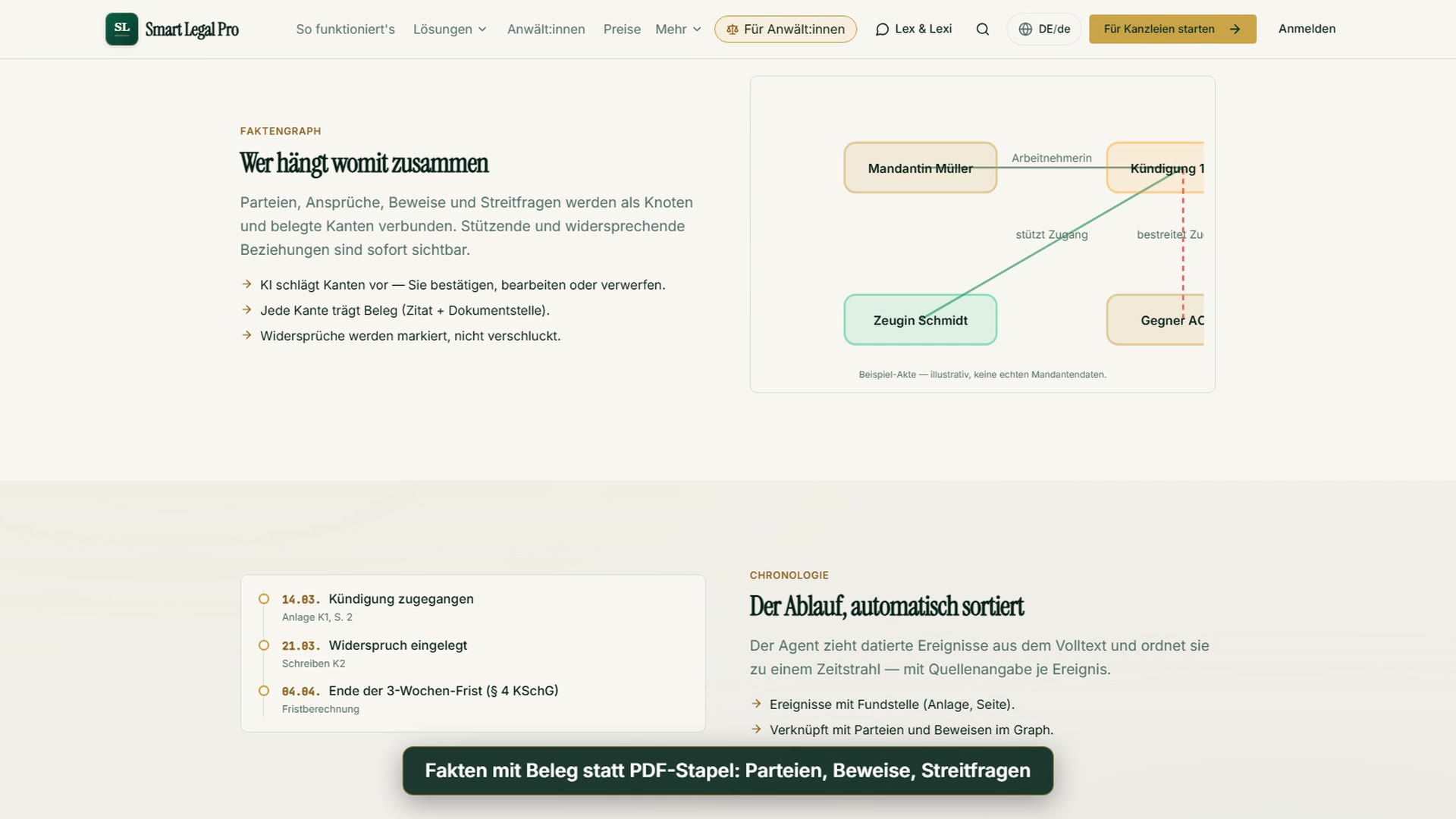
At the top you see a sample fact graph with nodes such as client, witness, termination and opponent, and edges such as “supports receipt” or “disputes”; a dashed red line marks a contradiction. The AI proposes edges, you confirm, edit or discard them, and every edge carries evidence with a quote and document location. Below, the timeline shows dated events with a source reference, such as exhibit and page, linked to parties and evidence in the graph. This keeps it verifiable where a statement in the case file comes from; the case file shown is an example without real client data.
Deadlines with evidence: new documents sorted automatically
The upper section “Inbox triage” shows a process list: new document detected, classified as statement of defense, deadline extracted and opposing brief detected with a suggested reply. Below is the deadline proposal with legal basis, calculation and an advance reminder, marked “Approval needed”. The agent proposes a deadline only with evidence; if the evidence is missing, you get a note instead of a date, and nothing is entered until you approve. In the deadline register, deadline, peremptory deadline (Notfrist), resubmission and appointment stay separate.
Agents: the AI that does not wait until you ask
The upper section “New document – the AI gets going” shows how triggers start inbox triage and fact graph update when a document arrives, with a notice in the cockpit that requires approval. Below, the agent recognizes, per case type and jurisdiction, which documents and client information are missing, and proposes a ready-to-send follow-up request to the client. The function is on by default and can be switched off; nothing is sent without your approval. For this, the client uploads without a login, so the request resolves itself.
Proceedings timeline: everything from the proceedings in one list
At the top, the section “One list instead of many tabs” shows an example with a hearing, an opposing pleading, a package status and a deadline. The proceedings timeline brings together hearings, pleadings, rulings, summonses, expert opinions and package statuses, including from the opposing side and the court. A deadline arises from it only via the deadline register, not through the timeline itself. Below it is about witnesses and offers of evidence: on request, the AI can make an offer-of-evidence proposal that is labeled as unchecked and that you adopt or discard.
Court proceedings: instances, pleadings and exhibits in one case file
The upper section shows an example with first instance, appeal as the current instance and a series of pleadings made up of statement of claim, response, reply and rejoinder. Instances such as appeal, appeal on points of law (revision) or complaint stay in one case file, so documents, facts and deadlines stay together; phase and party role appear as an evidenced proposal and apply only after your confirmation. Below, “An exhibit is a role, not a copy” explains that numbers such as K1 or B1 designate a document in the pleading without duplicating it. Reordering is possible by dragging or by keyboard and can be undone.
Projects: several case files with one overview
At the top you see a sample project with three case files: interim proceedings, main proceedings and out-of-court warranty claim. The case files keep their file numbers, parties and permissions; the project is only the shared bracket and can be dissolved again. Below, the project sequence shows deadlines, resubmissions and court dates of all case files in one order, each naming the case file and with a click into the deadline register. This way overlaps between interim and main proceedings are noticed early; no second deadline list is created.
Kanzleien: KI-Arbeit
Images: 10Assistant and debate: asking instead of hallucinating
The example above shows a request about the statement of defense: instead of drafting, the assistant asks a follow-up question about the receipt of the termination and builds the draft only after the answer. The list names case-file context and attachments per thread, jump list, progress summary, branches for variants and editing of Word files with redline and clean versions. The assistant can search facts that have already been extracted without using quota; only beyond that does it read the original in a targeted way. Below, the debate between Lex and Lexi begins with argument and counter-argument.
Lex & Lexi: two AI voices think your case through from opposite sides
At the top, Lex and Lexi take turns: Lex represents the formal line, Lexi looks for gaps and a second line, such as a settlement. So instead of a smooth answer you get a debate that you moderate, in several modes such as analysis, strategy, weak points and reply. The hand-over to the model is pseudonymized. Below, the hearing coach describes how, during the hearing, it supplies the next question, the fitting provision and a response to new submissions, and asks when the facts are unclear instead of guessing.
Moot Court: rehearse the hearing before it takes place
The upper example shows a dialogue: the court asks about receipt of the termination, “Your line” answers, the opposing side disputes the signature, and you respond with a fallback offer. The simulator remembers the state of the proceedings, reacts to your motions and takes into account the procedural law of the respective legal system. Below, it leads through stages from the conciliation hearing to the close of the oral hearing and marks where your decision is due. It is distinct from the Lex & Lexi debate and from hearing preparation.
Deep research: first the brief, then the run in seven phases
At the top you see a research brief with question, scope and depth, waiting for your approval. Only after your confirmation does the run start, and only then are costs incurred. The section below explains that instead of a single call, a process runs in phases, each with a checkpoint: clarifying the brief, plan, collecting in a fixed order from statute holdings, case file and web, cross-checking and writing. The research runs in the background, you learn of its end by email, and the opinion is available as PDF and Word file in the case file’s DMS.
Pleadings with approval and verified citations
At the top, a process list shows how the agent first proposes an outline, you approve it, the sections are drafted, a versioned Word document is created and a citation check compares citations against sources. The drafts follow the style of the respective legal system, for long pleadings with heading block (rubrum), motions and evidence lines, and internal notes are marked yellow; for contracts this works clause by clause. Below, the section “Not out of thin air” explains that the agent first reads the case file’s fact network and that the finished run shows a source record with the number of facts, links and documents that went in.
Canvas: writing with the AI while you keep the pen
At the top, the section “A sheet like in Word, not a chat window” describes the editor with page format, zoom, ruler, page overview, menu bar and right-click menu. The AI sits beside it: you mark a passage and have it rephrased, shortened or made more precise, and the document remains the basis rather than the chat history. Below, the redline example shows struck-through old text and highlighted new text with the Accept and Reject buttons. Every decision lands in the decision log and can be traced later.
Assistant workshop: history, variants and Word files in one place
The top is about orientation in long conversations: the jump list leads to every question, every draft and every branch, and “What did we do last?” generates a numbered progress summary from the history. It enters the case-file note only with your click. Below, the page explains branches: from any answer you can check a variant, if you wish with its own document variant, without changing the main history. A branch triggers no analysis and changes no deadline; which version becomes the main version you choose in the case file.
Editing Word files by chat: templates and letterhead are preserved
At the top you see an example with version 4 of a statement of defense: one paragraph was changed, one inserted, the rest left unchanged. The assistant reads the file paragraph by paragraph, changes only the affected passages and briefly summarizes the changes; letterhead, numbering and templates are preserved. In review mode its suggestions appear as tracked changes under the author “Assistent (KI)”, and it can also add comments. In Word you accept or reject each change individually, and changes by other authors remain untouched.
Branching: checking alternatives side by side
At the top, an example shows a branch from answer 7 with two alternatives, “limitation period only, brief” and “with settlement offer”. A click on an answer opens a new conversation with the history up to that point, the same attachments and the same case-file context, without changing the original. Below is the document variant per branch: versions sit side by side in the case file instead of scattered across downloads, and two versions can be compared with marked changes. This lets you try out directions instead of constantly rewriting one conversation.
Legal library: the law as a hands-on citation network
Shown is the live demo of the legal graph: at the center is a judgment of the Federal Labor Court (BAG), surrounded by provisions such as § 626 BGB (Civil Code) or § 1 KSchG (Dismissal Protection Act) and by decisions of state and labor courts that cite it. With the buttons at the top you switch the layout between cloud and columns and the sorting between Latest and Most cited. Nodes can be clicked, dragged and expanded by neighbors; according to the page text, this works without sign-in, without cost and without an AI run. For the decision shown, the library lists numerous citations and openly states the limits of its holdings.
Kanzleien: Team & Mandanten
Images: 4DMS and case cockpit: documents that work along
At the top, the DMS (document management system) explorer shows a sample case file with folders such as correspondence, evidence and internal notes restricted by release. Deleted items remain traceable as soft delete, and the same storage feeds the case-file AI. Below, “Compare versions, secure evidence” explains the version awareness: you see the current version, compare two states and set a legal hold that blocks deletion and modification. This is meant for documents relevant as evidence, where nobody should change anything by accident.
Client portal: one access for your clients
At the top, the visibility principle explains that clients see only what has been released: case files only with a stored viewing right, documents only by individual release, internal drafts and notes stay hidden. Five areas can be switched off individually, blocked on the server rather than just hidden, and deadlines are invisible by default. Below is “Request documents”: you send a checklist, every upload lands in the case file’s DMS and is checked against the respective item. This replaces email ping-pong; the firm’s logo and accent color appear in the portal header.
For large firms: every version, every comparison, one contract package
At the top, an example shows a service package with a main contract, an exhibit and an amendment in one sequence. For each follow-up document you set the type, arrange the order, mark what is signed and generate a combined PDF including an exhibit index; according to the page, the “signed” marking is a display only without legal effect. Below, the package check describes notices such as missing exhibits or precedence clauses. It runs without AI and at no cost, and on request the AI additionally reconciles the documents and backs each finding with verbatim passages.
Professional rules built in: blocklist, § 203 StGB and AI labeling
At the top, the page describes the conflict blocklist: firms maintain their own list by user account or email address with a reason, and the assistant warns before it answers on a blocked case file. The warning can be confirmed and the chat remains resumable. Below follow the safeguards for confidentiality under § 203 StGB (German Criminal Code): EU processing, client separation by row-level security, firm-wide configurable pseudonymization with a transmission record and no training on firm data. The page describes measures and not a legal assessment.
Kanzleien: Preise & Vergleich
Images: 3Pricing for law firms: one subscription per firm with monthly AI quota
The page “Plans & quotas” shows three plans, Kanzlei Start, Pro and Premium, with a switch between monthly and yearly. Each card states parallel case files, agent runs and AI units per month as well as the included features; Pro offers higher quality and more quota, Premium the largest quota. A note explains that prices are provisional and a running subscription keeps its price and service until the plan changes. According to the page, what counts is always the display at booking, because the values are loaded live from the portal.
Comparing law firm AI workspaces: nine criteria for choosing
The page “Nine criteria for choosing” invites you to test every provider, including your own, against the same points. Each card poses a question, for example whether the workspace brings its own matters, whether the AI observes on its own or waits for prompts, whether there is a route for clients and how billing works. Below, it states how Smart Legal Pro answers each criterion, for example with its own client portal or a subscription cancellable monthly with fixed quotas. Market statements are labeled as observations; check them yourself.
Lawyer directory: profiles by country, legal area and language
At the top, a notice says that during the test phase mostly sample profiles are shown, which are marked “Sample profile”, and that real lawyers are being added continuously and verified manually. The filters allow searching by name, firm or region as well as by country, legal area and language, and the number of hits is shown above. Each card names legal areas, languages and response time and offers the buttons View profile, Start request and Compare. For firms, this is the place where private individuals can find them.
More categories
- Case file & facts 40
- Deadlines 13
- Pleadings & editor 20
- AI assistant 19
- Lex & Lexi 19
- Contracts 15
- Firm & DMS 24
- Research & knowledge 20
- Client portal 11
- Settings & firm 8
- Understanding proceedings 28
- Letters & replies 13
- Creating contracts 11
- Checking a contract 9
- AI legal information 7
- Calculators 9
- Tools 28
- Legal knowledge 6
- Account & credits 6

Try it yourself
Start free, upload a letter, check a deadline – no credit card needed.

