Images
Understanding proceedings
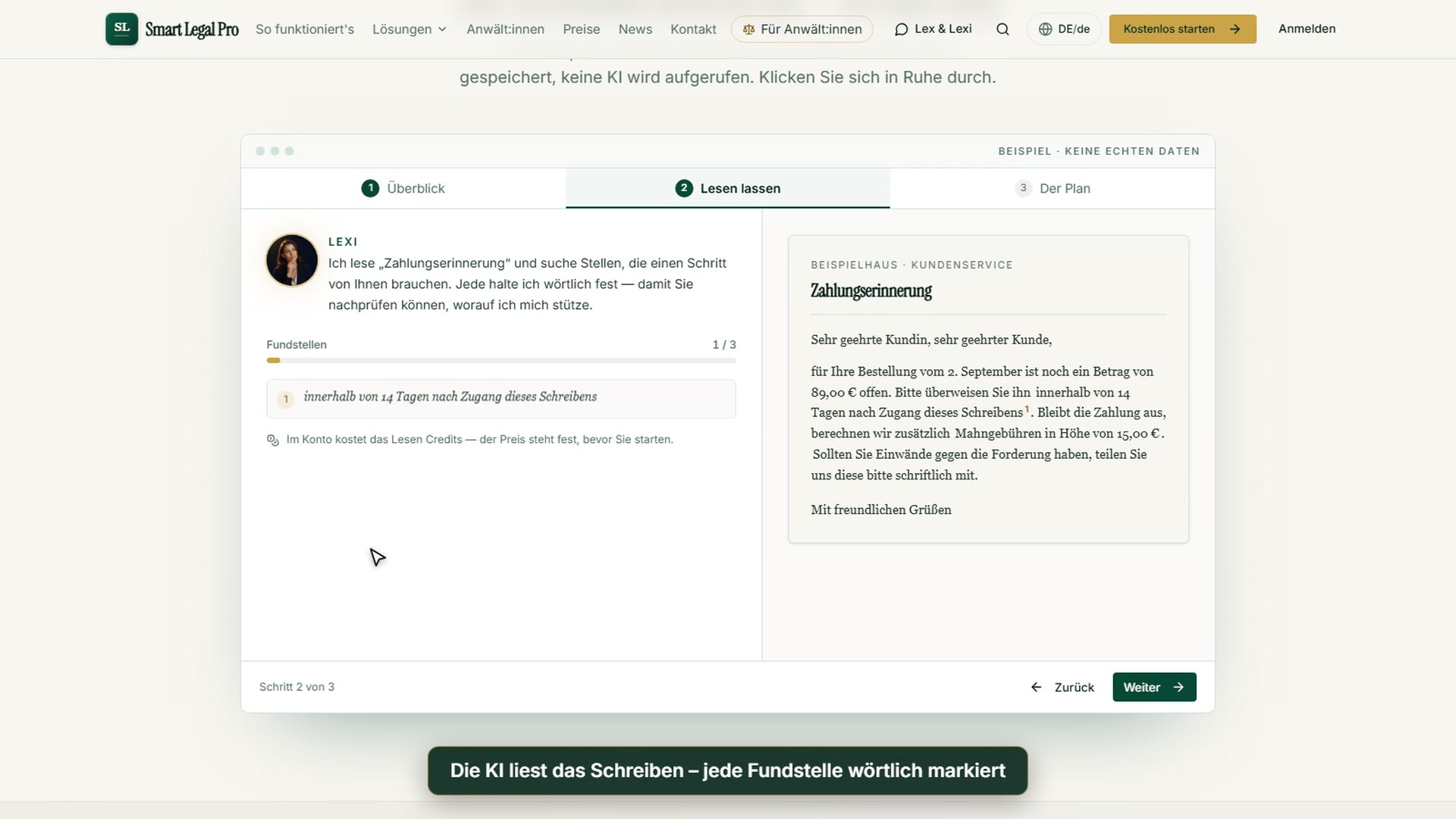
Understanding proceedings: the litigation companion reads letters, shows deadlines with the source passage and explains the next step in plain words.
All recordings use fictional sample data – no real cases, people or file numbers. AI output can contain errors and does not replace legal advice.
Start und Überblick
Images: 10Overview: documents, deadlines and next step at a glance
At the top Lexi, the AI companion, greets you and summarizes how many documents and deadlines there are. Below, a note highlights the next expiring deadline, and on the right are the available credit and the usage of recent days. With one click you jump to the deadlines, to the conversation with Lexi or back to a chat you have begun. Deadlines for which the receipt date is still missing are reported separately, because the app does not calculate a date that is not evidenced.
To the feature: How it works →To the feature: Companion Lexi & Lex →
New matter: upload a document or describe the problem in your own words
The page offers two ways into a new case: at the top the “Upload document” button, below it a text field in which you describe what happened. If you upload a letter, the AI recognizes on its own what kind of contract or official notice it is. If you describe the problem in your own words instead, the app creates a matter from it and opens the chat for it. Creating costs nothing; what a reply in the chat costs, you see there before sending. Below, existing matters can be searched and filtered by size.
My documents: secure storage with status and detected deadlines
Here your uploaded letters and contracts are shown as cards with a status such as “Ready”, the sender and the note “Deadline detected”. With “Choose file” or by dragging into the area you upload a new document, and folders, search and filters help with sorting. The upload is free, the price is shown once more before every AI analysis, and nothing is charged without your consent. This keeps your documents in one place and shows at a glance which letters have a running deadline.
Mobile: My documents with photo upload and status
On the smartphone the storage shows the buttons “Choose file”, “New document” and “Take photo” at the top. With them you photograph a letter directly or upload an existing file. Below follow search, filters and the list of your documents, and the bottom bar leads to Overview, Matters, Chat and Menu. The upload is free; before every analysis you see the price and confirm it.
Dark mode: the same overview for evenings and long reading sessions
On the left is the dark sidebar with My matters, My documents, Deadlines and AI help; in the middle is Lexi’s greeting with a summary of the documents and open deadlines. Below, the card “And now?” points to the next expiring deadline, and the deadline center shows the individual deadlines with time remaining. On the right you see the available credit with the usage of recent days and a breakdown of the top actions. Dark mode is easier on the eyes during long reading sessions with contracts and letters; the data in the picture are sample data.
Mobile: overview with deadlines and next step
At the top are credit and notifications, below them the greeting and the card with Lexi, who summarizes documents, open deadlines and deadlines with a missing receipt date. Every number can be tapped and leads to the matching list. The orange card “And now?” names the next expiring deadline with a button to the deadlines, below which “Continue working” offers the most recently opened chat. You reach the bottom bar with Overview, Documents, New, Matters, Chat and More with your thumb; the data in the picture are sample data.
My matters: rent increase and court proceedings bundled with next deadline
“My matters” lists your legal affairs with status, country and last activity. Each card shows whether the matter is open and, where applicable, the next deadline or the stage of a court proceeding, in the picture a consent deadline and a pre-litigation proceeding. With the field at the top you create a new matter with a title, and filters, sorting and search help with longer lists. In a matter you bundle documents, letters and correspondence on one affair. The entries in the picture are sample data.
Matter with deadline: consent deadline detected, next step proposed
The overview of a matter shows at the top the status, the number of detected facts, the next deadline and the certainty of the country assignment; below, “And now?” asks about the next step and proposes a reply letter. The box “Deadlines of this matter” bundles the deadlines detected from the documents, here a consent deadline for a rent increase request. You can add deadlines manually or view all deadlines. A note makes clear that the details are AI-supported and do not replace a lawyer’s deadline check; the example is fictitious.
Dark mode: matter with deadline and history
The same matter overview in dark mode: status badges, the next deadline, the deadline list and the history stay readable with strong contrast, and the accent color changes from green to gold. Dark mode changes only the appearance, not the content. This is easier on the eyes during longer evening reading sessions. All functions, such as reply letters, further actions and the tabs Overview, Documents & letters, AI results and History, remain available unchanged.
Mobile: matter with deadline and next step
On the smartphone the matter shows title, country and creation date, below them the status badges: open, number of facts, next deadline and the certainty of the country assignment. The box “And now?” proposes the next step, here to create a reply letter. Tabs divide the matter into Overview, Documents & letters and AI results; at the bottom you reach Assistant, Letters and Lawyer as well as the main navigation. This way you keep deadlines and next steps in view on the go too.
Schreiben verstehen
Images: 5Dunning letter checked: letter left, plain-language assessment right
On the left you see the uploaded letter, a second reminder announcing that the claim will be passed to a debt collection company (a fictitious example). On the right, the AI explains in the “Analysis” tab in simple words what the letter says and marks the matter as “Often solvable on your own”. Below are the next actions, such as “Create letter” or “Engage a lawyer”, each with the price or the note “free” in advance. It is an assessment for your review, not legal advice.
Reminder: note on review and list of next steps
Further down in the analysis is a red box with the note “legal review recommended” and the reasoning that a lawyer can check the lawfulness of the flat fees. Below follows “Your next steps” as a list in a sensible order: check the risk, note the deadline and activate a reminder, work through self-help steps, optionally create a reply letter. If you do not want to continue alone, you hand the matter over via “Hand over to lawyer”. The notes are suggestions for review; the decision is yours.
Deadlines: detected deadlines with source, reminder and calendar
The page collects all deadlines the app has detected in your documents. If a letter lacks the receipt date, it says “Date not evidenced” and you enter the date yourself; only then does the app continue calculating and remind you. At the top you can switch on an email reminder before expiry, and you can take individual deadlines over as a calendar file. The yellow note stresses that you should also check deadlines yourself, because AI results can contain errors.
To the feature: How it works →To the feature: Notice period calculator →
Detected details: amounts, dates and parties with evidence from the document
Under “Detected details”, the AI sorts by type what it found in an uploaded letter: persons, organizations, dates, deadlines, amounts, case numbers, references, objects and quantities. Every detail carries a title, a value, the verbatim quote from the document and a “View evidence” link, so you check every entry at the source. A search field and filters help with sorting, with the pencil icon you correct entries, and you add missing details with “Add fact”. The detection is an AI-supported assessment, not legal advice, and may be incomplete.
My facts: search and review all detected details from all documents
“My facts” collects everything the AI has detected in your documents in one place, grouped by matter. You search the list by label or value, filter by category or show only unverified entries, and each entry names the document it comes from. With “Save list as file” you keep the facts for your own records or pass them to a lawyer. You read in new documents via “Extract from new document”, and here too the note applies that results may be incomplete or outdated.
Begleitung
Images: 8Companion: Lexi shows the plan and next steps for your documents
Lexi, the AI companion, greets you and names the most important thing of the day, here a missing receipt date for two deadlines. Under “What I suggest” are concrete steps with a button, such as “Enter date”, as well as the option to have Lexi read documents. The help chat shows you the way for free, while legal work such as an analysis or legal question shows its price beforehand. Below, tiles summarize documents, deadlines, credit and matters. Lexi does not give legal advice.
Process companion: run a small civil case yourself, with AI help
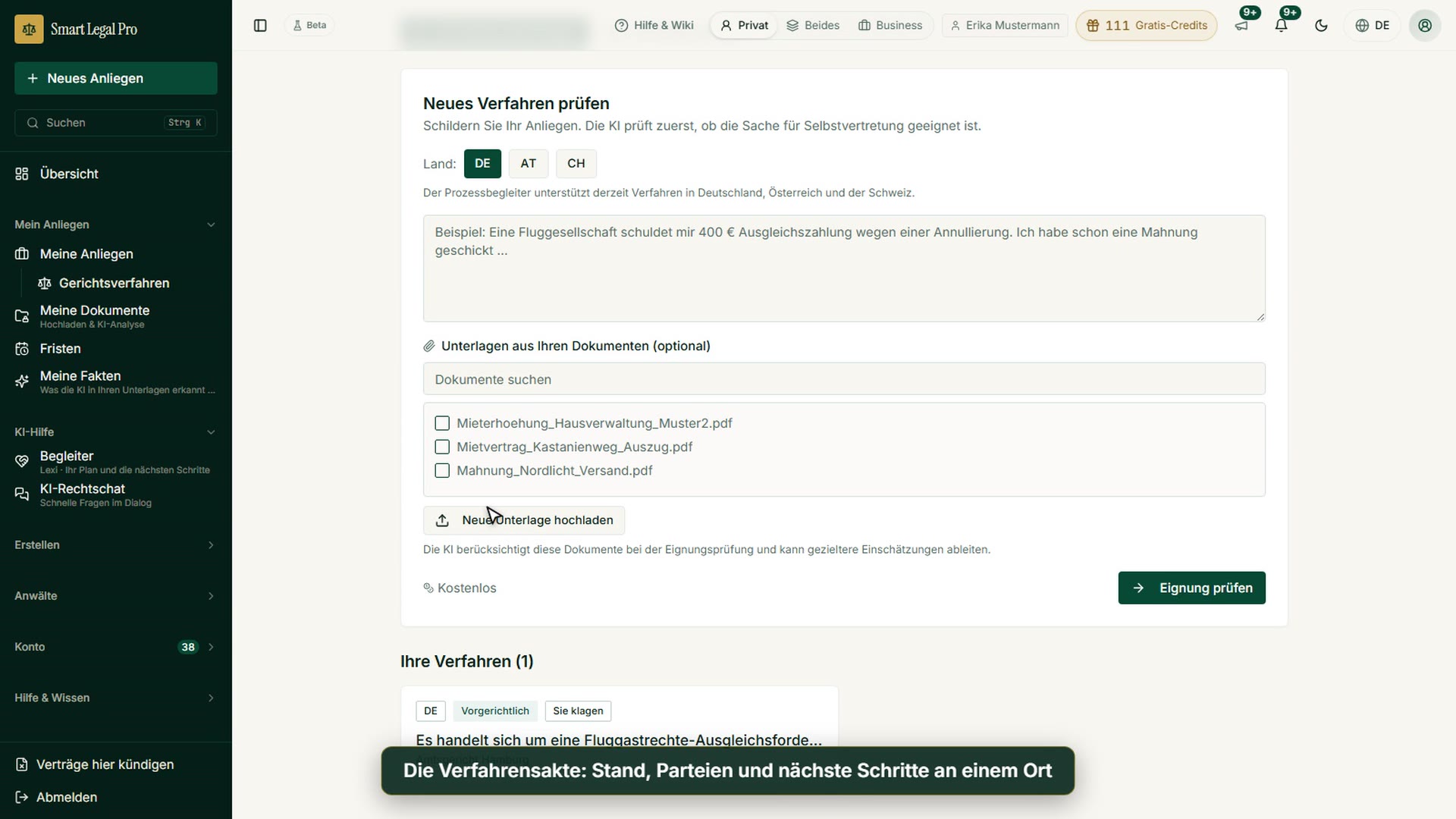
The page is aimed at people who want to run or understand a small civil case themselves. With “I want to sue myself” or “I was sued” you choose your role, and under “Check new proceedings” you describe your matter and choose the country. The AI first checks whether the matter is suitable for self-representation and can draw on documents from your files. The note at the top makes clear: it is a self-help tool, not legal advice and not representation; you review, sign and file yourself.
The companion: someone who knows your documents
The public page introduces the companion: Lexi sees what you have uploaded, which deadlines are running and what your balance covers. On request she reads individual documents and names, for each suggestion, the place where it appears; the decision stays with you. On the right you see Lexi, and below you choose whether Lexi or her colleague Lex accompanies you. Both can do the same, the choice can be changed in the account, and a trial run shows in advance what the accompaniment looks like.
Strategy for next steps: situation, chances, risks and open decisions
The “Strategy for next steps” summarizes the facts, analyses and deadlines of a matter. It is divided into situation, recommended strategy, prioritized steps with urgency labels and chances, with the evidence found in the history. In the example it concerns a rent increase request: the AI suggests first checking formal validity and justification before deciding on consent or refusal, and noting the deadline. With “Generate new” you create the assessment anew; it serves orientation and is not legal advice.
Mobile: process companion on the smartphone
The process companion is aimed at people who want to run a small civil case themselves, and accompanies them with AI from the suitability check through pleadings to filing. A note on self-representation appears right at the start: it is a self-help tool, not legal advice and not representation; you review, sign and file yourself. With “I want to sue myself” or “I was sued” you choose the direction, then you describe your matter and choose the country from Germany, Austria or Switzerland. In cases of mandatory legal representation or high complexity, the platform refers you to a lawyer.
Process companion: describe the facts, the AI checks suitability first
The page “Check new proceedings” first asks for the country (Germany, Austria or Switzerland) and for a description of the matter; in the example it concerns a cancelled flight and the compensation payment. Below, you can tick documents from your files or upload new ones so that the AI can derive more targeted assessments. “Check suitability” is labeled as free. The AI assesses whether the matter is suitable for self-representation. At the bottom are the proceedings you have already created.
Suitability check: result “Suitable for self-representation” with reasoning
Below the filled-in form appears the result of the suitability check, in the example “Suitable for self-representation”. A yellow box makes clear that this is an AI-supported assessment without legal advice that may be incomplete or outdated. Below, a text summarizes what the AI assumes about the case: the claim, the likely competent local court (Amtsgericht) and that there is no mandatory legal representation. The case is fictitious; you keep the decision whether to create a proceeding, and you can seek advice at any time.
I was sued: select the letter you received and have it classified
The process companion offers two entry points at the top: “I want to sue myself” and “I was sued”. For the second, the page asks “Did you receive mail from the court?”; you select the letter from your documents or upload it anew and start “Detect”. This creates a defense proceeding; the text expressly reminds you to watch the deadline and links to an explanation in the wiki. A box above makes clear that it is a self-help tool without legal advice and representation and that in cases of mandatory legal representation it refers you to lawyers.
Typische Fälle
Images: 2Debt collection claim received: quick check and deadline in view
Shown is an excerpt of the debt collection use case with a quick check of a few yes/no questions, for example whether the claim may be time-barred or whether you cannot place it. You answer the questions without signing in and enter above when you received the letter. Below, the dark box “Deadline in view” explains that the deadline set by the debt collector is usually seven to fourteen days, and cites § 286 BGB (German Civil Code). The page leads on to analysis, calculators and reply letters.
Rent increase received: quick check and deadline for consent
The excerpt shows the quick check on a rent increase with three yes/no questions: whether the landlord is already threatening to sue, whether the increase is justified by modernization and whether the consent deadline has almost expired. You answer the questions without signing in. Below, the “Deadline in view” box sums up: you can consider until the end of the second calendar month after receipt whether you consent; if you do not consent, the landlord can sue for consent within three further months. The page cites § 558b BGB (German Civil Code) as the basis.
Verfahrensakte
Images: 3Proceedings file: status, next steps and aids on one page
At the top, the proceedings file shows court, country, amount in dispute and legal area of the sample case and below it the line “And now?” with the next sensible step. A step bar leads from “Pre-litigation” via claim, response, taking of evidence and hearing to the judgment, with the current step highlighted. Four quick actions answer “What would you like to do now?”: have court mail explained, view the history, print everything or ask the AI. Five tabs (Evidence & parties, Mail & deadlines, Overview, Pleadings, Calculators & aids) organize the rest. Entry into the proceedings is described as a one-time unlock with quota.
Claim check: readiness, missing details and competent court at a glance
Before filing, the claim check bundles how complete the claim is: a bar shows the readiness in percent, a checklist ticks off what has been captured and leaves open what is still missing, such as an item of evidence or the finalized pleading. Below, the tool names, based on the amount in dispute, the likely competent court with its legal basis and lets you choose a subject area with its own jurisdiction. “Limitation in view” calculates from the year the claim arose, without estimating deadlines. The note is explicit: deterministic orientation, not legal advice.
Print the proceedings file: ZIP, PDF overview and filing guide
The section “Your proceedings file” collects pleadings, exhibit index and proceedings overview in one place; in the example nothing has been captured yet, which the page also says. “Download everything as ZIP” packs pleadings, exhibits and overview in printing order along with brief instructions. The list “How to print and file correctly” names five steps from printing through signing to the copies for the other side. The overview is also available as a PDF or text file and, according to the note, is a personal summary, not an official document.
Matching videos

More categories
- Case file & facts 40
- Deadlines 13
- Pleadings & editor 20
- AI assistant 19
- Lex & Lexi 19
- Contracts 15
- Firm & DMS 24
- Research & knowledge 20
- Client portal 11
- Settings & firm 8
- Letters & replies 13
- Creating contracts 11
- Checking a contract 9
- AI legal information 7
- Calculators 9
- Tools 28
- Legal knowledge 6
- Account & credits 6
- The website 40

Try it yourself
Start free, upload a letter, check a deadline – no credit card needed.

