Images
Tools
Free tools without an account: limitation traffic light, litigation cost risk, amount in dispute, e-invoice check and more — with input, result and a traceable explanation.
All recordings use fictional sample data – no real cases, people or file numbers. AI output can contain errors and does not replace legal advice.
Fristen und Verjährung
Images: 7Deadline calculator: calculate the deadline end, a weekend moves it to Monday
In the calculator you enter the date of receipt, the length of the deadline and the unit (days, weeks or months); in the example it is 14 days from a Saturday. The tool names the end of the deadline and explains the calculation in a box: arithmetically the end would fall on a Saturday, and under § 193 BGB it moves to the next working day. The calculator uses German law and openly names its limits, such as that state public holidays are not included. It remains an aid for orientation; which deadline applies in your matter depends on the individual case. You do not need an account for this.
Calculate a deadline end: choose matter, enter receipt, see legal basis
Here you choose a matter from a list, in the example “Payment reminder & Mahnbescheid”, and enter the date of receipt or event. The tool shows the end of the deadline, the legal basis and the deadline according to the catalog, with a short explanation of what is at stake if it is missed. According to the note, the details come from the curated matter catalog and are not estimated; indicative values are labeled as such. A sentence reminds you that the date in your own document is what counts and that you should have the deadline checked by a lawyer if receipt is unclear. Date and deadline end are sample values.
Deadline overview: recorded deadlines with legal system and legal basis
The table “All recorded deadlines at a glance” lists matters with a concrete deadline verifiable in days, the shortest at the top. For each row you see the legal system (Germany, Austria or Switzerland), the legal basis and the length of the deadline. Where the length is not fixed by law, such as for formal warnings, the addition “Indicative value” appears. This way you see at a glance which letters are urgent and which provision is behind them. For your specific date you continue calculating in the deadline tool above.
Limitation traffic light: claim from 2023 – yellow, limitation expires soon
The years of origin are offered as cards, each with the expiry date of the standard limitation period; in the example 2023 is chosen. Below, the traffic light shows the end of the standard limitation period and the remaining time in days, here yellow with “Expires soon”. An explanation names the rule: three years under § 195 BGB, beginning at the end of the year of origin (§ 199(1) BGB). Below, the tool openly lists its limits under “What this traffic light does not cover”. The display can be used without an account and is an orientation, not legal advice.
Limitation traffic light: claim from 2022 – red, standard limitation has expired
If an older year of origin is chosen, in the example 2022, the traffic light turns red. It names the end of the standard limitation period and the time that has passed since, and explains the calculation under § 195 and § 199(1) BGB. Below it says what the traffic light does not cover: special periods, maximum periods independent of knowledge and suspension of limitation. “Expired” therefore only means that the standard limitation period has passed according to this calculation. The note “Germany only” shows that the calculator is based on German law.
Limitation traffic light: still time, and honest about the limits
For a recent year of origin the traffic light is green with the message “Still time” and names the end of the standard limitation period. The explanation below shows how the date results: three years from the end of the year of origin. The page places particular value on the limits: special periods, for example in sales or tenancy law, the maximum periods independent of knowledge and the suspension by a lawsuit or a Mahnbescheid are not taken into account. The closing sentence advises having the deadline checked by a lawyer if the exact day matters.
Mobile: limitation traffic light on the smartphone
On the smartphone the year cards are arranged in two columns, each showing the expiry date of the standard limitation period. With a tap on a year, in the example 2023, the end of the standard limitation period and the remaining time appear below in a warning line. The explanation names the calculation rule under §§ 195 and 199 BGB (German Civil Code). Further down follows the list of points the traffic light does not cover, such as special periods and suspension. This way a first assessment can be read off on the go without an account.
Kosten und Zuständigkeit
Images: 8Amount-in-dispute formulas: calculate an eviction claim from the base rent
First you choose the case, here the eviction claim under § 41(2) GKG, and enter the monthly net base rent. The tool calculates the amount in dispute with the displayed formula (twelve monthly rents) and shows two sample values next to it: your own lawyer costs in the first instance and the cost risk on defeat. A line explains that the sample calculation assumes the other side is represented by a lawyer and that court costs are lower in case of early resolution. All amounts in the picture are sample values; below follows a table of further statutory amount-in-dispute formulas.
Amount-in-dispute formulas: rent increase – from the monthly difference
Here the case “rent increase” is chosen; the page shows the formula: twelve times the monthly difference under § 41(5) GKG. You enter the difference, in the example a small euro amount, and the tool names the amount in dispute together with the provision. Next to it are two sample values for your own lawyer costs in the first instance and the cost risk on defeat. This lets you see how quickly costs and benefit face each other with small amounts in dispute. All amounts are sample values.
Cost risk calculator: court and lawyer costs if you lose (example)
You enter the amount in dispute and mark whether the other side has a lawyer. The calculator shows the cost risk on defeat and breaks it down: court costs as an advance payment, the other side’s lawyer costs and your own lawyer costs if you do hire someone. A box names what applies in case of early resolution through settlement, withdrawal or admission of the claim. A table with three sample amounts in dispute puts the result in context. The basis is the statutory fee tables; all amounts in the picture are sample values.
Cost risk calculator: without an opposing lawyer the breakdown shrinks
If the tick “Other side has a lawyer” is removed, the line with the opposing lawyer costs disappears. The cost risk then consists in the example only of the court costs, which become due as an advance payment. The line with your own lawyer costs remains as a reminder in case you do hire someone, but is not included in the large number. This lets you play through how strongly a lawyer on the other side affects the risk. All amounts are sample values.
Mobile: cost risk calculator on the smartphone
On the smartphone the amount-in-dispute field and the selection field for the other side are stacked. Below, the calculator shows the cost risk on defeat and breaks it down into court costs, the other side’s lawyer costs and your own lawyer costs, each with the amount under the line. A highlighted box names what applies in case of early resolution. Further down follows the table with three sample amounts in dispute. All figures in the picture are sample values.
Jurisdiction switch: enter amount in dispute, local court, self-representation
You enter the amount in dispute and, if needed, mark that it concerns a residential tenancy. The tool names the subject-matter competent court, in the example the local court (Amtsgericht), with the provision from the GVG (Courts Constitution Act), and says whether mandatory legal representation applies; here you may represent yourself. Below are the three possible cases in overview so that you can follow the rule. According to the note, the tool applies only to Germany, and the amount in dispute in the picture is a sample value.
Jurisdiction switch: above the limit, regional court with mandatory counsel
With a higher sample amount in dispute the result jumps from local court to regional court (Landgericht). The note below names the mandatory legal representation under § 78 ZPO (German Code of Civil Procedure): here you cannot represent yourself and should engage a lawyer. A link “Find a lawyer” leads directly to the search. The table below records the rule for all cases so that you see where the limit lies.
Jurisdiction switch: residential tenancy stays with the local court
The same sample amount in dispute as in the regional court case, only the tick “Dispute from a residential tenancy” is now set. The result is local court again, this time with the reasoning “Residential tenancy, regardless of value”, and there is no mandatory legal representation. The overview below lists this exception as the third case. At the end of the page the tool names the value limit and points out that some subject areas lie with the regional court regardless of value; it remains an orientation, not legal advice.
Post und Mieterhöhung
Images: 4What kind of letter is this? The file name is enough for classification
You enter a file name, in the example “Mahnbescheid_AG_Muenchen.pdf”, or choose a file. Only the name is read; the file does not leave your device. The tool recognizes the document type, here “Official or court letter”, and explains that such mail usually carries a deadline and the date should be checked first. Below, it suggests whether a reply letter makes sense and, if needed, links a matching free calculator. Sample files to try out are listed below.
What kind of letter is this? Judgment recognized, watch the appeal deadlines
With the sample file name “Urteil_LG_Berlin_2026.pdf” the tool classifies the letter as “Judgment or order”. The text explains that short appeal deadlines usually run against a court decision, and thereby shows how urgent the matter is. As with the Mahnbescheid, only the file name is evaluated, and there is no upload. The sample files below can be taken into the field with a click and cover three types: official mail, judgment, and invoice or reminder. The result is a first classification, not legal advice.
Quick check rent increase: modernization as the reason gives yellow
The quick check asks three short yes/no questions and needs no sign-in: whether the landlord is already threatening to sue, whether the increase is justified by modernization and whether the consent deadline has almost expired. In the example the answer to the modernization question is “Yes”, and the traffic light shows the recommendation “Premium check” with the note that different rules apply to a modernization increase. Next to it is the route to the paid premium check, whose cost is already named on the button. With “Reset answers” you start over. Below, the page explains the deadline under § 558b(2) BGB (German Civil Code).
Quick check rent increase: lawsuit threatened gives red, lawyer recommended
Here the answer to the first question is “Yes”: the landlord is already threatening to sue or has sued. The traffic light turns red and recommends a specialist lawyer for tenancy law, because you should not be alone in a consent lawsuit. The button “Refer to a lawyer” leads directly to the referral. This way the check ends honestly where free orientation is no longer enough. Below the check, the page explains the consideration period under § 558b(2) BGB (German Civil Code).
Verträge und Datenschutz
Images: 2Compare two contract versions: additions and deletions line by line
On the left you paste the old version, on the right the new version of a contract text, in the example a liability clause. Below, the comparison marks deleted text in red and added text in green line by line and counts at the top right: added, removed, unchanged. According to the note, the comparison runs purely computationally in the browser, nothing is uploaded and no AI is used. The assessment of what a change means stays with you; for that the platform offers AI suggestions elsewhere. “Restore example” resets the texts.
Pattern detection live: name, IBAN and phone number replaced before the AI
In the “Text” field is an example with name, email address, phone number and IBAN. Below, the preview shows which details the rule-based detection finds, broken down by type, and the text with placeholders such as [Name], [Email] and [IBAN]. According to the note, the detection runs locally on your device, with no network call, not even when inserting the sample text. On the right, the page explains that the preview deliberately shows only an excerpt: without a case file it knows no names from the case, and the model cross-check is omitted. All details in the picture are fictitious examples.
E-Rechnung prüfen
Images: 7Check an e-invoice: drop XRechnung or ZUGFeRD, no account and no AI
The page “Check e-invoice” shows a drop area for an XRechnung as XML or a ZUGFeRD or Factur-X invoice as PDF, with a size limit. With “Choose file” or by dropping, the check against the rules of the European standard EN 16931 starts; the page expressly advertises “No account, no AI”. A note below explains that the file is not stored or logged on the servers; only a counter against abuse holds a hash of the IP address. This way you check whether a received e-invoice formally complies with the rules.
E-invoice checked: green light, no errors under the rules
After dropping a sample invoice, the green message “No errors found” appears. The text makes clear that under the rules neither errors nor warnings were found and that this is a technical checking aid, not a tax assessment. Below, three counters count errors, warnings and notes, together with the detected format, here CII as XML. An offer explains that a free account unlocks the full report with source references, the JSON download and a draft letter. “Check another file” starts over.
E-invoice checked: red light, three errors with rule ID and plain text
For a faulty sample invoice the message turns red: “Errors found”, with the note that this may have tax consequences and should be clarified with a tax advisor. Three counters name the number of errors, warnings and notes. The section “Most important findings” lists the errors with rule ID and plain text, in the example two deviations in the tax amount and a missing buyer reference or Leitweg-ID. Anyone who creates a free account sees the source reference and explanation for each rule in the full report and returns to the result without uploading again.
E-invoice: full report with source reference and “What to do” per rule
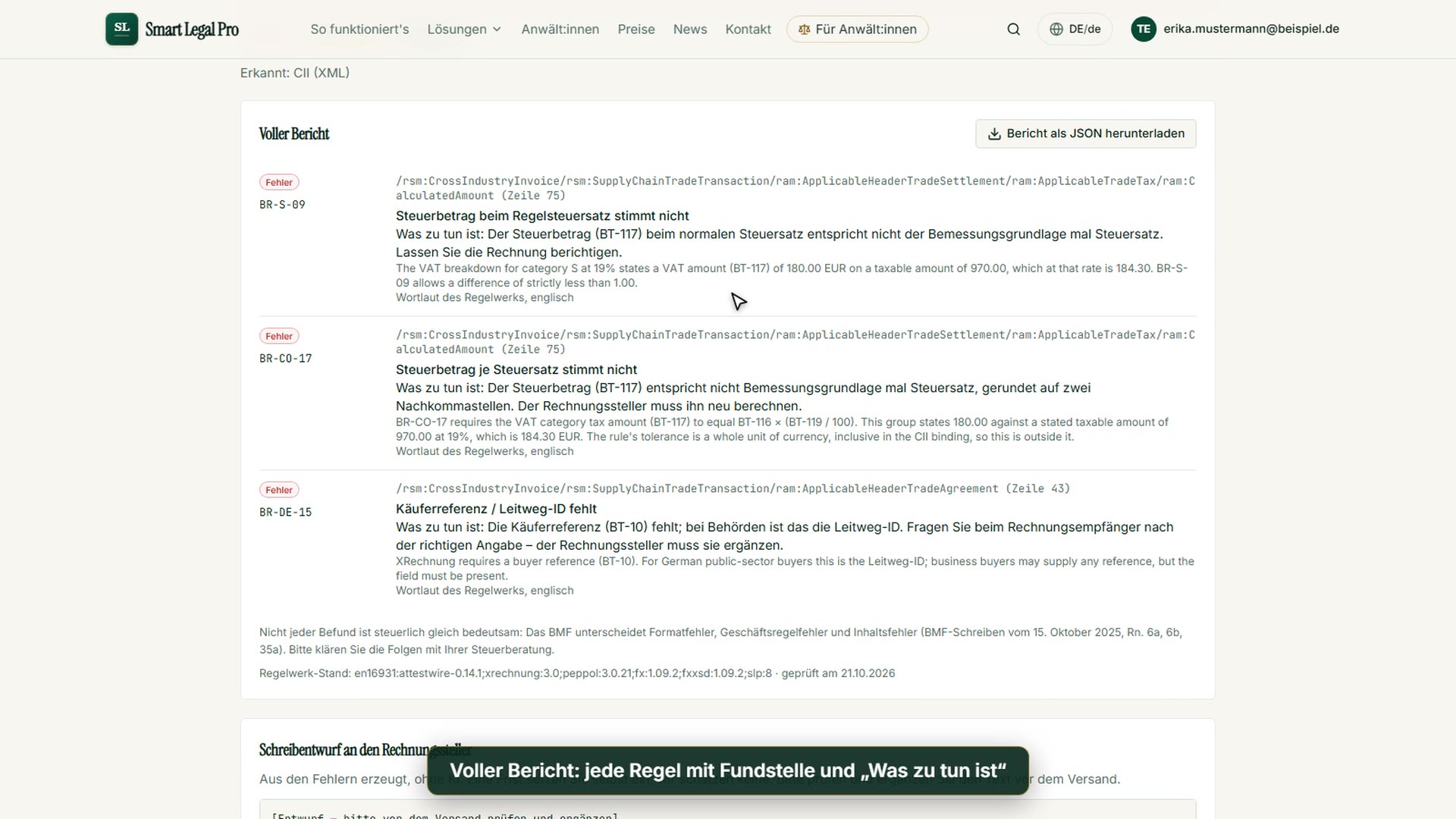
The full report lists every finding with rule ID, the location in the file including line number, a plain-language title and the instructions “What to do”. Below is the English wording of the rules with the concrete values, so every message can be verified. At the top right, a button downloads the report as JSON. At the end, a note explains that not every finding is equally significant for tax purposes and names the version of the rules. The check remains a technical aid; the tax assessment belongs with tax advice.
E-invoice: draft letter to the invoice issuer from the errors, without AI
From the errors the tool generates, without AI, a draft letter to the invoice issuer. It names invoice number and date, the rule IDs with source reference and plain text, and the request for a corrected e-invoice. The draft begins with the note to review and supplement it before sending; you set a deadline yourself, the tool does not estimate one. With “Copy text” you take it over into your mail program. A note makes clear that the draft is neither legal advice nor tax advice.
E-invoice with no findings: green light and version of the rules
For a formally correct invoice the full report shows “No findings”; the JSON download remains possible. The section Draft letter explains that no errors were found and therefore no letter is created, which avoids unnecessary drafts. Below are the note on the differing tax significance of findings and the exact version of the rules with the check date. This way you can later prove against which version the check was made. Here too: technical checking aid, no tax assessment.
Mobile: check an e-invoice on the smartphone
On the smartphone the red message “Errors found” appears with the name of the checked file at the top of the picture. Below follow the counters for errors, warnings and notes, the detected format and the most important findings with rule ID and plain text, stacked instead of side by side. Further down, the page offers the full report with a free account. This way a received e-invoice can be checked for formal errors on the go, without AI and without an account for the first assessment.
Matching videos


More categories
- Case file & facts 40
- Deadlines 13
- Pleadings & editor 20
- AI assistant 19
- Lex & Lexi 19
- Contracts 15
- Firm & DMS 24
- Research & knowledge 20
- Client portal 11
- Settings & firm 8
- Understanding proceedings 28
- Letters & replies 13
- Creating contracts 11
- Checking a contract 9
- AI legal information 7
- Calculators 9
- Legal knowledge 6
- Account & credits 6
- The website 40

Try it yourself
Start free, upload a letter, check a deadline – no credit card needed.

