Images
AI assistant
The AI assistant in action: questions about the case, answers with sources, working documents and model choice — with a visible cost line before every AI action.
Tip: click an image to open it large – use the arrow keys to move on.
Assistent im Chat
Images: 5AI Assistant: See Costs and Context Before You Send
Below the input field, the assistant of a case shows a cost line with the estimate “Expected Standard · counts 2×”; above it is the quota bar, below it the selected context “All documents”. A further notice reports that details are masked before sending, including a preview. This way you see before every question how heavily it uses your AI quota, and you can adjust model or context. Suggested tasks and questions on the case make it easier to start; the AI’s answers are suggestions that you review yourself before use.
Page of this image →To the feature: AI assistant & Lex & Lexi debate →Watch the video →
Model Choice in the Assistant: Auto, Fast or Balanced
An expanded selector above the chat lists the models: at the top the default “Auto (best model per task)” with a short recommendation, below it tiers such as “Fast” and “Balanced” with speed and token indicators. Each entry carries notes on context size and EU operation. Before the question you decide whether speed, economical use or more depth matters more to you; the Auto default takes the choice off your hands and conserves the quota. A model you have fixed, by contrast, stays consistent throughout the conversation.
Page of this image →To the feature: AI assistant & Lex & Lexi debate →Watch the video →
Check Panel Under the Answer: Sources, Statute Citations, Next Steps
Below an answer, the assistant collects its evidence: “2 sources cited”, a line with the basis (documents, case summary, confirmed source passages) and the number of citations of provisions that were checked and how many were not. In addition there are expandable areas for sources and steps, the line “Read · Checked · Open” with a cost indication and suggestions under “Sensible next steps”. Below are Copy, Export, Open in Canvas, File in case and Branch from here. This way you see what an answer rests on and what is still open; the answer itself remains a suggestion that you review.
Page of this image →To the feature: AI assistant & Lex & Lexi debate →Watch the video →
Assistant: Start with Quick Tasks Instead of an Empty Input Field
The AI assistant starts with a selection of tasks instead of an empty field: for example pleading from case, deadlines from case, client update or view summary. You choose a task with one click, it refers to the case selected above, and on the left you find your earlier conversations about it. Below the input field, an estimate appears beforehand of how heavily the question uses your AI quota. All answers are suggestions that you review yourself before use.
Page of this image →To the feature: AI assistant & Lex & Lexi debate →Watch the video →
Use “@” to Pull Documents and Parties of the Case into Your Question
An “@” in the input field opens a list with the documents of the case and the parties, here with the opposing party. You choose an entry, and your question refers specifically to that document or person. This makes it traceable what an answer is based on and spares long explanations in the text. Above are suggested questions on the case; below the field you choose, among other things, web research and model. The answers are suggestions that you review.
Page of this image →To the feature: AI assistant & Lex & Lexi debate →Watch the video →
Agenten im Hintergrund
Images: 7Agents: AI Suggestions Across All Cases in One Place
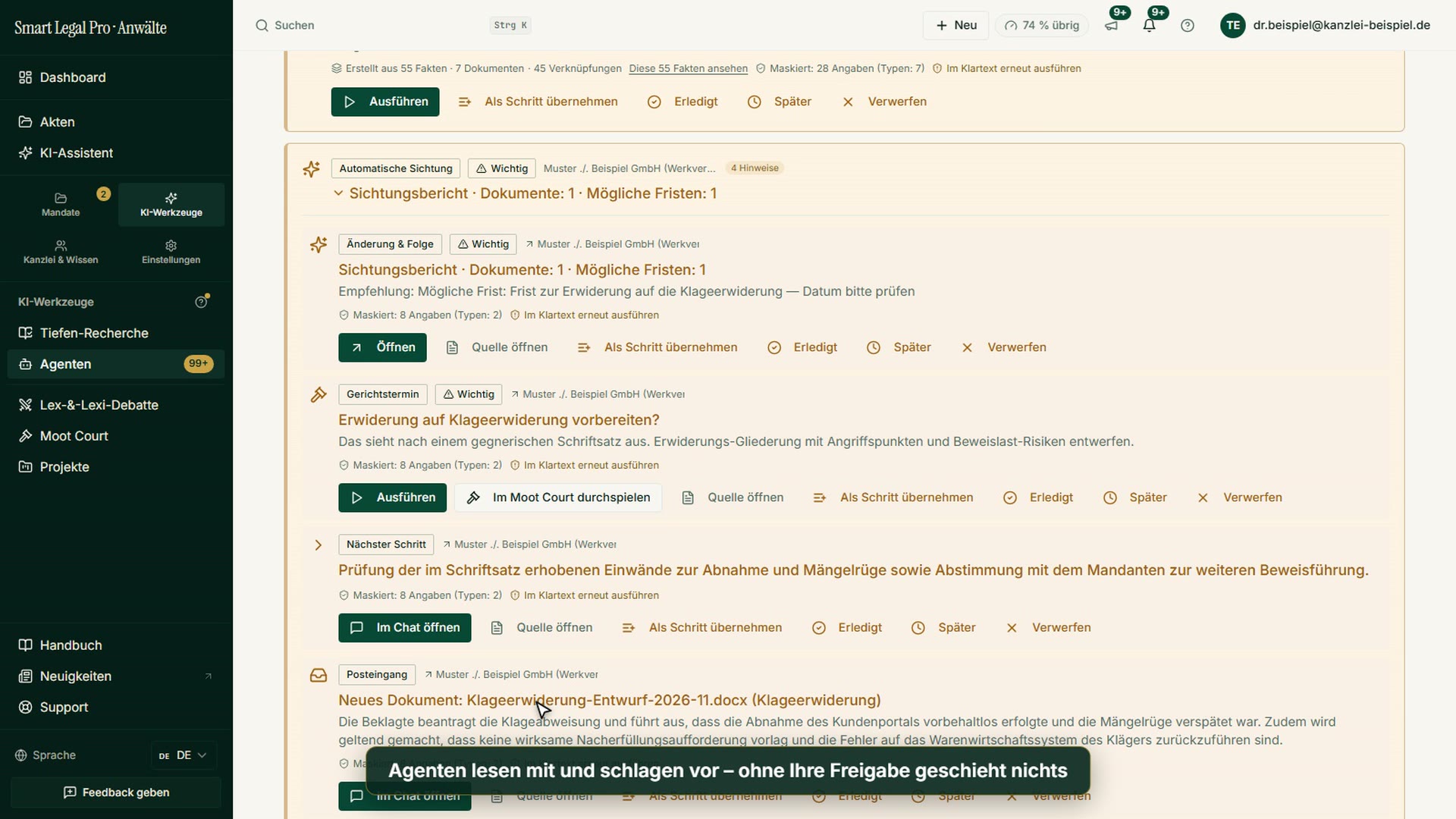
The “AI suggestions” tab is the central inbox of the agents across all cases. At the top, a box explains that watchers observe cases and deadlines free of charge and that agents file their results only as suggestions; below it appears a bundled screening report for one case with a note about a possible deadline whose date you should check. You accept, complete or dismiss the suggestions, and nothing is entered or sent without your approval. This spares you from clicking through individual cases.
Page of this image →To the feature: Proactive agents →Watch the video →
Agent Catalog: Flows for Case, Pleading and Hearing
The catalog lists the available agents and multi-step flows as cards, such as “Set up new case”, “Answer opposing pleading”, “Prepare hearing” and “Check completeness”. Each card describes the task and the result; you choose a case and start with “Start flow” or use “Set up automation” to decide whether the agent runs along on its own. In the completeness check, you can optionally have a follow-up question to the client prepared; sending remains your decision. This way you trigger recurring tasks with one click, without having to start again in between.
Page of this image →To the feature: Proactive agents →Watch the video →
Autopilot: Set Once How Much the AI May Do on Its Own
The “Autopilot” tab of the Agents page sets, for all cases together, how much the AI may do on its own. At the top, a box reports on the watcher layer, which shows approaching deadlines, silent clients and open contradictions free of charge and without an AI run, and which can be switched off at any time. A notice below explains what you can and cannot expect from these alerts: only what is recorded in the case is reported. Your own deadline control explicitly remains your responsibility, and you set exceptions per case.
Page of this image →To the feature: Proactive agents →Watch the video →
All recordings use fictional sample data – no real cases, people or file numbers. AI output can contain errors and does not replace legal advice. The screenshots show the English interface; sample data and documents are partly in German. Smart Legal Pro itself is fully available in German, English, French, Italian, Spanish, Dutch and Polish.

More categories
- Case file & facts 43
- Deadlines 13
- Pleadings & editor 40
- Lex & Lexi 20
- Contracts 26
- Firm & DMS 52
- Research & knowledge 21
- Collaboration & sharing 21
- Client portal 33
- Settings & firm 10
- Understanding proceedings 43
- Letters & replies 11
- Creating contracts 15
- Checking a contract 6
- AI legal information 30
- Calculators 10
- Tools 35
- Legal knowledge 2
- Account & credits 12

Try it yourself
Start free, upload a letter, check a deadline – no credit card needed.

