Images
AI legal information
AI legal information: ask questions, read answers with references and see next steps — for consumers, without legal jargon.
Tip: click an image to open it large – use the arrow keys to move on.
Rechtsfragen stellen
Images: 5Free legal information: enter a keyword, find the right path
On the public page you type a keyword or a question, here “Termination received”. Matching use cases with a short description appear immediately below, followed further down by legal areas, calculators and contract templates. The search runs entirely in your browser, nothing is transmitted and nothing is charged, and no sign-in is needed. Lexi points out that the question alone is often enough for a first assessment and that a letter is uploaded only for a closer review.
AI legal chat: ask a question, the price is shown below the input field
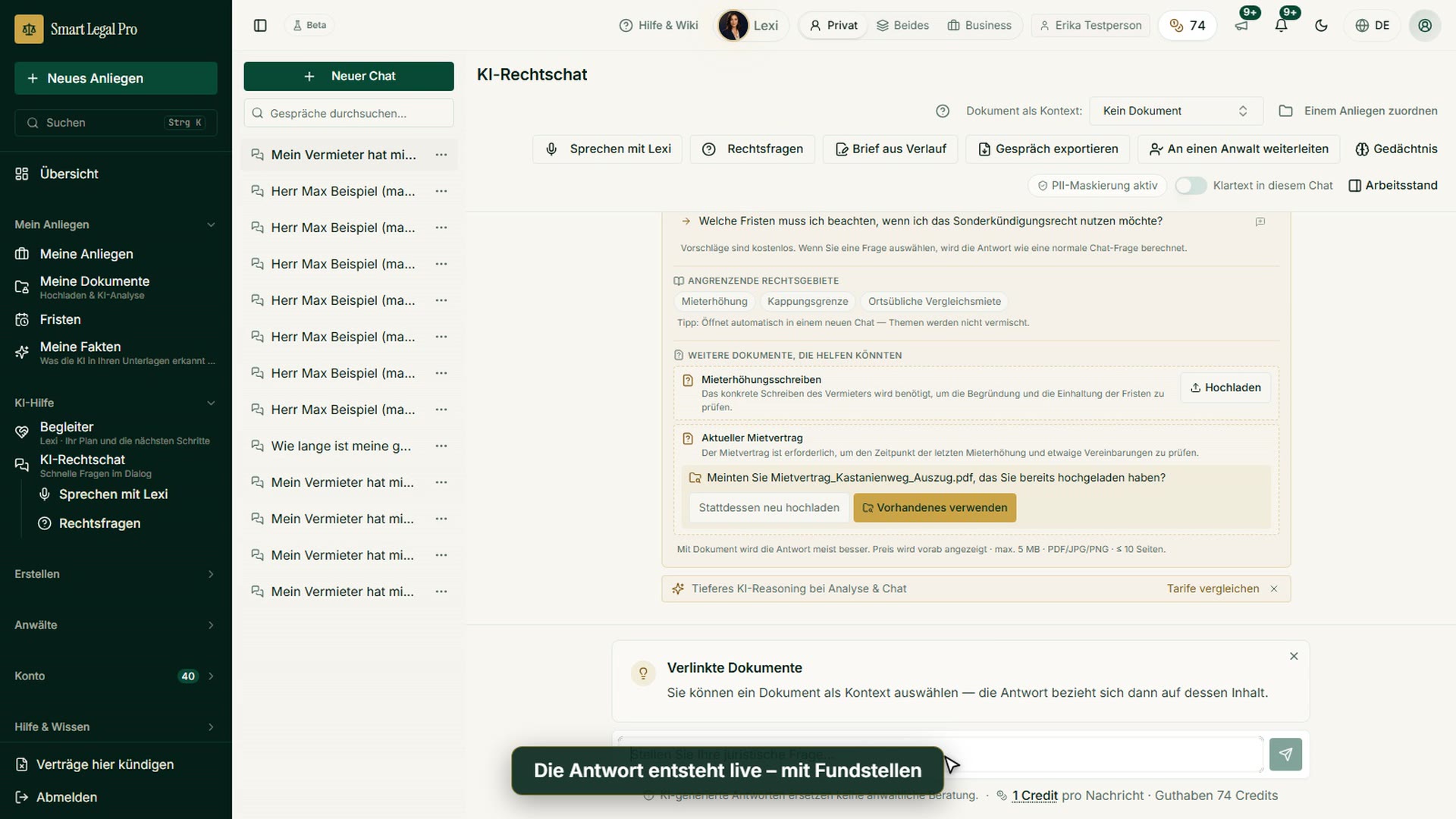
The chat begins with “What is it about today?” and four sample questions to click, for example about a rent increase or the notice period as a tenant. At the top you can choose a document as context if needed, and earlier conversations are on the left. Below the input field it shows what a message costs, next to it your credit, so you see the price before sending. The note “PII masking active” shows that personal details are protected, and a switch lets you allow plain text for this chat.
Chat answer with statutory provisions: rent increase of 20 percent
The answer to a question about a rent increase names the consideration period, the rent cap and, as the “Next sensible step”, checking the lease and earlier increases. Below the text it says that this is a general assessment without your documents and that statutory provisions were verified; with a click on “Citations verified” you see the sources. For an increase of 20 percent, the AI recommends a legal review or advice from a tenants’ association before you consent. With “Copy” and other buttons you keep working with the answer.
Mobile: AI legal chat on the smartphone
On the smartphone too, the chat begins with “What is it about today?” and the sample questions to tap. At the top you choose a document as context, the menu shows earlier conversations, and the input field is at the bottom. Directly below you see what a message costs and your credit, and a note reminds you that AI answers do not replace legal advice. The bottom bar leads to Overview, Documents, Matters, Chat and Menu.
Talking to Lexi: describe your situation in conversation
Instead of typing, you tell your legal question in conversation: Lexi listens, asks follow-up questions and summarizes, and you receive the transcript automatically afterwards. At the top you choose between Lexi and Lex and between the conversation styles “To the point”, “Balanced” and “Listener”. The tip “Just start talking” allows you to interrupt the assistant at any time. Further down, the conversation can be extended automatically, which costs additional credits. It remains an AI-supported assessment without legal advice.
Dokument im Gespräch
Images: 6Cited Passage Highlighted: Answer and Document Preview Side by Side
The conversation is about a tenancy agreement that you chose as the document in context; the header line names the file. The answer quotes the clause that rules out further rent increases word for word. Via “1 source cited” and “Open in document”, the preview on the right jumps to the passage and highlights it in yellow, and the header line reports that the passage was found. This way you read the quoted clause in the original. The answer is a hint for your own review, not legal advice.
Lexi Knows Your Document: Starter Questions That Fit the Contract
In a conversation with a document that has been read, Lexi greets you with the file name and the page count. Below are starter questions built from the content of the contract, for example on graduated rent or subletting. A click only writes the question into the input field; it is sent only when you want it. On the right the document is there to read, and the cost line under the input field states the price per message.
Read a Long Document: Page Count and Price Are Shown Up Front
If a document is longer than about twelve pages, Lexi reads it once in full and summarises it, so that she knows more than just the beginning. The dialog states up front the page count, whether it is text or a scan, the one-off price and your balance. After that, each question costs the usual price, as long as the document stays unchanged. Nothing is charged until you confirm “Read”; with “Cancel” everything stays as it is.
All recordings use fictional sample data – no real cases, people or file numbers. AI output can contain errors and does not replace legal advice. The screenshots show the English interface; sample data and documents are partly in German. Smart Legal Pro itself is fully available in German, English, French, Italian, Spanish, Dutch and Polish.
More categories
- Case file & facts 43
- Deadlines 13
- Pleadings & editor 40
- AI assistant 35
- Lex & Lexi 20
- Contracts 26
- Firm & DMS 52
- Research & knowledge 21
- Collaboration & sharing 21
- Client portal 33
- Settings & firm 10
- Understanding proceedings 43
- Letters & replies 11
- Creating contracts 15
- Checking a contract 6
- Calculators 10
- Tools 35
- Legal knowledge 2
- Account & credits 12

Try it yourself
Start free, upload a letter, check a deadline – no credit card needed.

