Images
Creating contracts
Creating contracts: templates and an assistant guide you through the details, the cost is visible up front, and the result can be reviewed and adjusted.
Tip: click an image to open it large – use the arrow keys to move on.
Dark mode: contract assistant with live preview at night
The contract assistant guides you step by step through a contract, here a loan agreement: at the top are the seven steps from the contracting parties to the review, on the left the input fields, on the right the live preview of the contract. As you fill in, the contract text appears alongside; details that are still missing show in the preview as asterisk placeholders. The preview carries a watermark and is not meant for signing; you receive the finished contract without a watermark after creation as PDF and Word file. In dark mode the preview stays readable as a light sheet.
Vertragsart finden
Images: 3Create contracts: contract types sorted by topic and searchable
The contract catalog begins with the assistant for those who do not know which template fits, followed by a search field, topic filters and the contract cards. Each card names country, language and level and shows in numbers how many clauses, variants and fields the contract has and for how many fields an AI suggestion is available. With “Start” you open the assistant for exactly this contract type. This way you see before filling in how extensive a contract is. Anyone who already has a contract can have it reviewed and adapted via the note above.
Topic filter “Financing”: see only matching contract types
Under the search field the topics are shown as buttons, here “Financing” is clicked. The catalog then shows only two cards: the loan agreement and the convertible loan. With another click on “All” you see all contract types again. The convertible loan card additionally carries the note “Lawyer rec.”, which honestly shows that legal advice makes sense for this complex contract. This way you find the matching template without reading through the whole catalog.
Search for a contract template: type “Minijob” and see the matching template
The word “Minijob” is in the search field of the contract catalog, and exactly one card remains below it: the minijob contract for marginal employment. The search filters while you type and apparently takes name and description of the templates into account. The card shows clauses, variants and required fields so that you can gauge the scope before you begin with “Start”. Anyone who does not know the contract type uses the assistant at the top of the page instead of the search.
Vertrag Schritt für Schritt
Images: 7Create a loan agreement: seven steps with a preview that grows along
At the top a bar shows the seven steps of the loan agreement, from the contracting parties through amount, interest, term and collateral to law, place of jurisdiction and review. On the left are the input fields with explanations; on the right the preview of the contract grows along, with missing details shown there as asterisks. Below the preview it says that it carries a watermark and is not meant for signing. You receive the finished contract after creation as PDF and Word file.
Enter the contracting parties: names and addresses appear in the preview
Step 1 asks for lender and borrower, each with name or company name and address. Below the fields it says what should be entered, such as the full company name including legal form for businesses. What you enter appears at the same time in the contract text of the preview on the right, where the asterisks are replaced by the sample names. This way you check on the spot whether the details arrive correctly in the contract. All names and addresses in the picture are fictitious sample data.
Loan amount and payout: every detail with an explanation
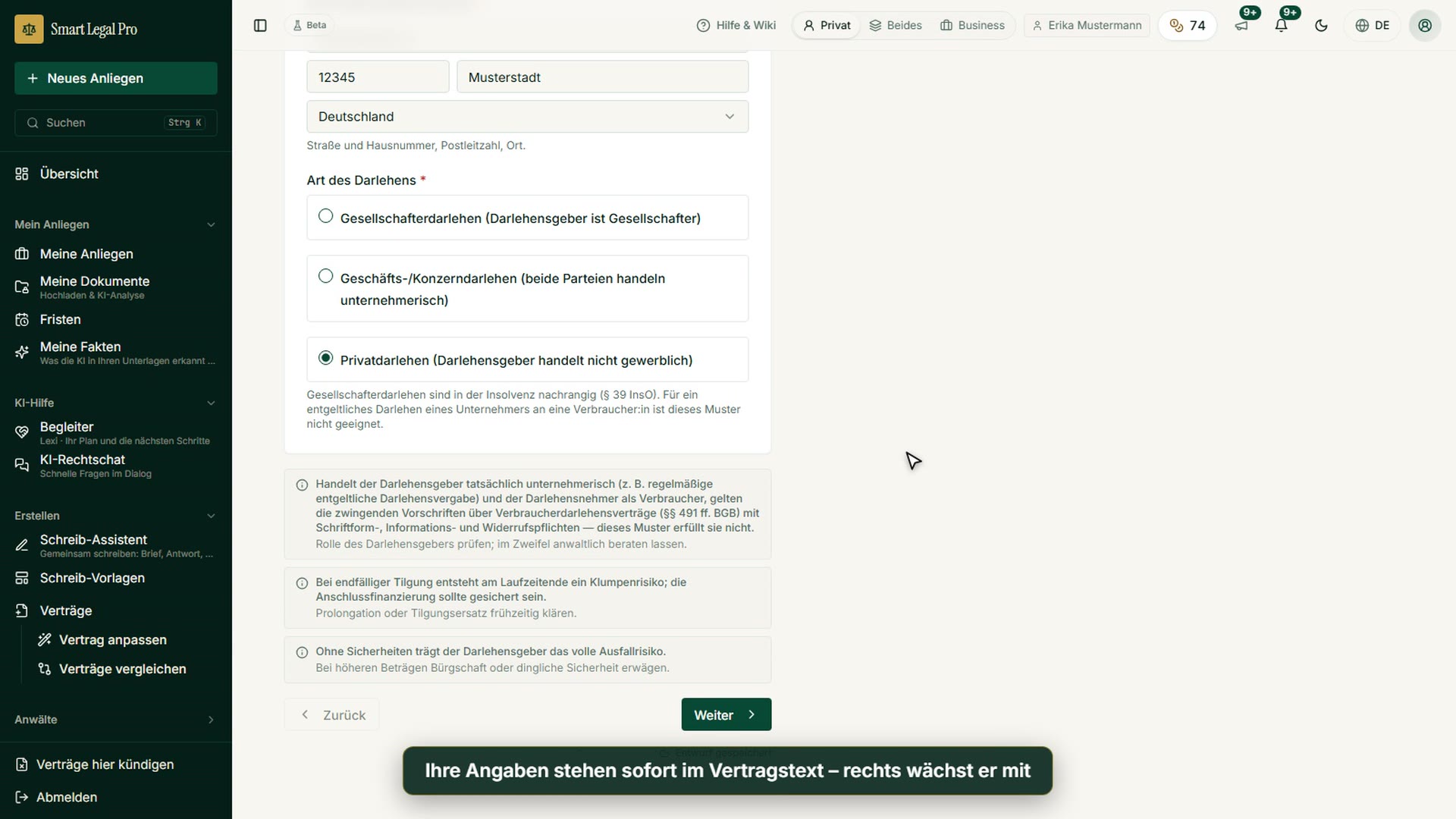
Step 2 asks for the loan amount, payout date and an optional purpose; next to the purpose is an “AI suggestion” button whose result you review and change. Below the field, a line explains the consequence of the entry, for example that earmarking gives the lender an additional right to terminate. Below that are notes, for example on the rules for consumer loans and on the default risk without collateral, each with advice on how to deal with it. The chosen payout date already appears in the contract text of the preview.
Set the interest: interest models compared with notes on the consequences
Step 3 shows three interest models as cards side by side: interest-free, fixed rate and variable with reference rate plus margin. Each card briefly describes advantage and disadvantage and shows a sample wording that would be adopted into the contract; the chosen card is highlighted. Below, the assistant names the legal basis and warns that interest-free loans between related persons can be tax-risky. You then enter the interest rate and the payment date of the interest. This way you understand what you choose instead of merely filling in a field.
All recordings use fictional sample data – no real cases, people or file numbers. AI output can contain errors and does not replace legal advice. The screenshots show the English interface; sample data and documents are partly in German. Smart Legal Pro itself is fully available in German, English, French, Italian, Spanish, Dutch and Polish.
More categories
- Case file & facts 43
- Deadlines 13
- Pleadings & editor 40
- AI assistant 35
- Lex & Lexi 20
- Contracts 26
- Firm & DMS 52
- Research & knowledge 21
- Collaboration & sharing 21
- Client portal 33
- Settings & firm 10
- Understanding proceedings 43
- Letters & replies 11
- Checking a contract 6
- AI legal information 30
- Calculators 10
- Tools 35
- Legal knowledge 2
- Account & credits 12

Try it yourself
Start free, upload a letter, check a deadline – no credit card needed.

