Images
Lex & Lexi
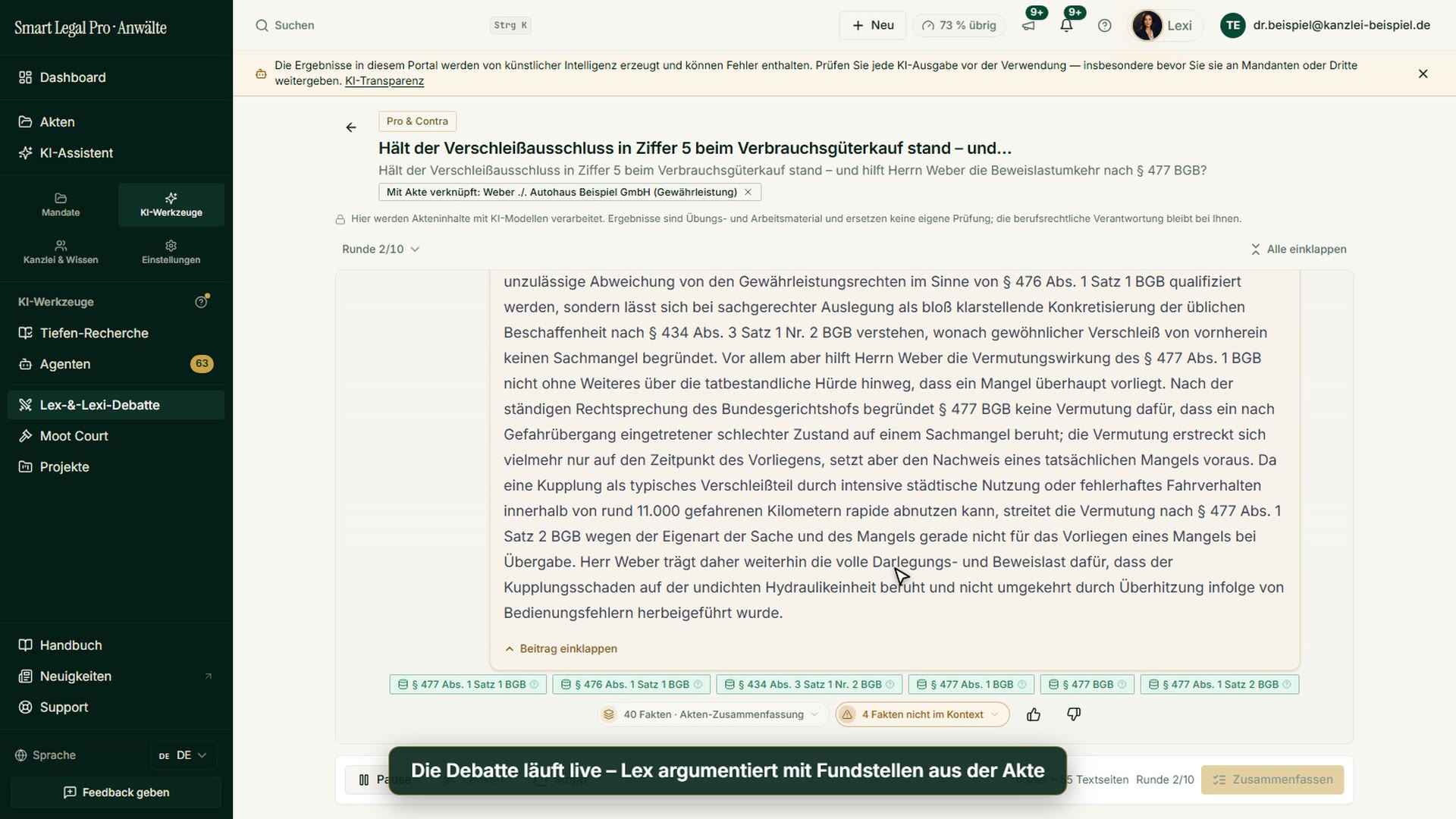
Lex & Lexi as sparring partners: two AI voices debate a case, and the moot court rehearses the hearing. The results remain suggestions for your own review.
Tip: click an image to open it large – use the arrow keys to move on.
Debatte im Überblick
Images: 2Lex & Lexi: Two AIs Compete for the Best Argumentation
The start page of the Lex & Lexi debate explains in one sentence that two AIs compete for the best argumentation and arranges the tools in three groups: “Check arguments” with Pro & Con and pleading check, “Develop together” with argument search, chains of provisions and client memo, and “At the hearing” with the negotiation coach. Pro & Con is marked as the entry point; one click on a card starts the setup. Below follows the history of earlier sessions. The arguments of the two AI voices are material to review and do not replace your own legal assessment.
Page of this image →To the feature: Lex & Lexi debate →Watch the video →
Lex & Lexi Opened from a Case: Tools with a Linked Case
The same overview, opened from a case: under the introduction is the note “Linked to case” with the case name, which you can detach again with the cross. The cards are Pro & Con, Pleading check, Argument search, Chains of provisions, Client memo and Negotiation coach. The linked case provides the context, so you do not have to enter it again. At the top of the page, a note reminds you that AI results can contain errors and must be checked before use.
Page of this image →To the feature: Lex & Lexi debate →Watch the video →
Debatte aufsetzen
Images: 7Set Up Pro & Con: One Legal Question Is Enough, the Case Flows In
The “Pro & Con” form asks only for the disputed question in the “Legal question / thesis” field; Lex argues for it, Lexi against. A note explains that summary, facts and relationship graph of the linked case flow in automatically. Optionally you attach a document, choose models per side or have the question researched in depth instead. At the bottom, law and language show that they come from the case and can be changed, and masking is switched on. With “Continue — view usage and start” you reach the cost preview before the AI runs.
Page of this image →To the feature: Lex & Lexi debate →Watch the video →
AI Cost Preview Before the Debate: Usage, Weighting, Duration
Before a debate begins, the “AI cost preview” opens. It states the estimated usage in tokens, the weighting of the chosen model and the resulting load on the quota, the expected duration and the remaining AI quota. With “Start now” the debate begins, with “Cancel” you close the window. So you know the effort in advance and decide deliberately; according to the note, the figures are a rough estimate.
Page of this image →To the feature: Lex & Lexi debate →Watch the video →
Argument Search: Lex and Lexi Gather Arguments for Your Position
In the argument search, Lex and Lexi work together and gather arguments for your position. Under “Position / facts” you describe which position should be strengthened; summary, facts and relationship graph of the linked case flow in automatically. Optionally you attach documents, choose models per side and change law and language, which are prefilled from the case. Before the start, the next step shows the estimated usage, and the results are suggestions that you review.
Page of this image →To the feature: Lex & Lexi debate →Watch the video →
Chains of Provisions: Claim Bases and Procedural Points Step by Step
In the chains of provisions, Lex identifies claim bases, Lexi adds procedural points and the burden of proof, step by step. You describe the facts, the linked case provides the context; optionally you add documents and choose the models for both sides. Law and language are prefilled from the case and can be changed, and PII masking is switched on. Only in the next step do you see the estimated usage and start the analysis, whose result is a suggestion to review.
Page of this image →To the feature: Lex & Lexi debate →Watch the video →
Client Memo: Opportunities, Risks, Costs and Open Questions as a Draft
For the client memo, Lex gathers law and opportunities, Lexi the risks, costs and open questions. You define the client’s role, such as plaintiff, defendant or buyer, and describe the advisory case; the case provides summary and facts. The result is a draft of an advisory memo that you review yourself before passing it on to the client. The usage is shown before the start.
Page of this image →To the feature: Lex & Lexi debate →Watch the video →
Pleading Check: Weak Points and Opposing Attacks in Your Own Pleading
The pleading check reviews a pleading of your own: Lex examines structure and gaps, Lexi attacks it from the opposing side’s point of view. You state the type of pleading, paste the text, upload a file or choose it from the case or DMS, and optionally add facts and context. The examples in the “Type of pleading” field come from several legal systems. The findings are notes for your revision and not legal advice.
Page of this image →To the feature: Lex & Lexi debate →To the feature: Pleadings & contracts →Watch the video →
All recordings use fictional sample data – no real cases, people or file numbers. AI output can contain errors and does not replace legal advice. The screenshots show the English interface; sample data and documents are partly in German. Smart Legal Pro itself is fully available in German, English, French, Italian, Spanish, Dutch and Polish.
More categories
- Case file & facts 43
- Deadlines 13
- Pleadings & editor 40
- AI assistant 35
- Contracts 26
- Firm & DMS 52
- Research & knowledge 21
- Collaboration & sharing 21
- Client portal 33
- Settings & firm 10
- Understanding proceedings 43
- Letters & replies 11
- Creating contracts 15
- Checking a contract 6
- AI legal information 30
- Calculators 10
- Tools 35
- Legal knowledge 2
- Account & credits 12

Try it yourself
Start free, upload a letter, check a deadline – no credit card needed.

