Images
Contracts
Contracts in the case file: contract package, question log, versions with their origin and the client’s feedback — from briefing to the signed version.
Tip: click an image to open it large – use the arrow keys to move on.
Contract Package: ZIP, Combined PDF, Contract Status and Package Comparison
The “Contracts” tab of the sample case Cloudwerk / Nordstern shows a contract package of seven documents: main contract and follow-up documents in their current version, plus “Download all as ZIP”, “Combined PDF” and the counter “0 of 7 signed”. Below, you can incorporate comments into the whole package, record the contract status and use “Package comparison with AI” to find contradictions between the documents, here in the liability cap. The comparison names verbatim sources, runs only on click with a cost line and changes no document. This way you keep an entire contract set in view instead of single files.
Page of this image →To the feature: Features at a glance →To the feature: Pleadings & contracts →Watch the video →
Question Log: Which Questions Were Asked and How They Were Answered
Under “Questions and answers”, the question log records which questions the contract interview asked and which answers were incorporated; at the top it says “14 of 15 questions answered”. For each question, such as in whose favor the contract is drafted or how acceptance is regulated, the card shows the answer and its basis, for example “From your briefing” or a topic from the playbook. This makes it possible to trace later why a clause is worded the way it is. If you repeat the interview, earlier rounds are kept, and changes are marked.
Page of this image →To the feature: Features at a glance →Watch the video →
Contract in the Editor: Contract for Work with Version, AI Actions and Review
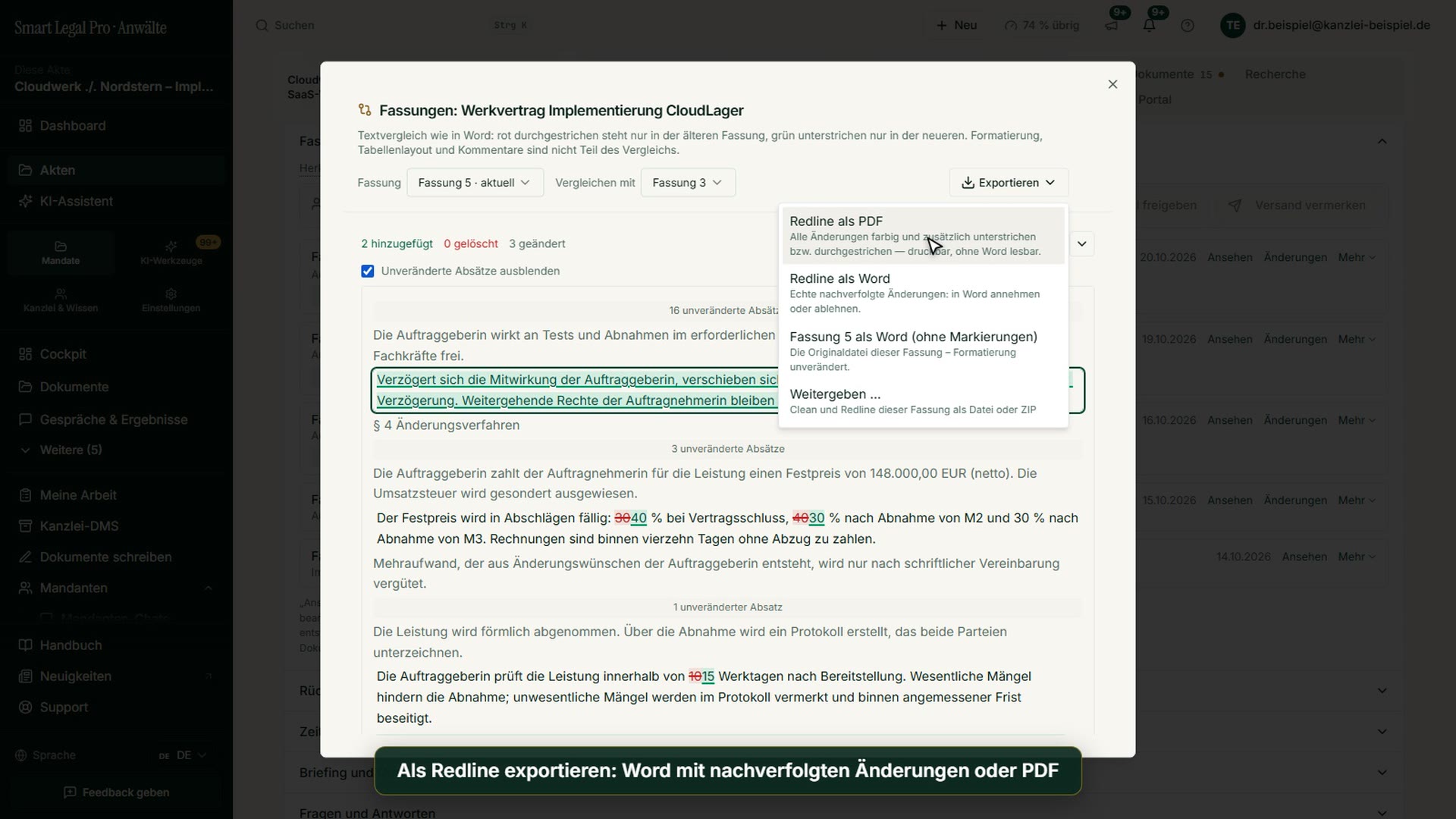
The contract for work (Werkvertrag) of the sample case opens in the editor like a Word document: title, parties, preamble and sections on the left, menu bar and formatting at the top, the tool panel with AI actions on the right. Next to the title, the label “Word · Version 5” shows which version is open, and the “Review” tab names the open points. You mark a clause, choose an action or formulate an instruction of your own; saving creates a new version. This way the contract stays in the familiar format, and changes are traceable.
Page of this image →To the feature: Canvas & Redline →To the feature: Word editing →Watch the video →
Client Feedback: Comments from the Portal on the Contract Version
The view shows the release of a contract version from the firm’s perspective: on the left the contract for work “view only”, above it the note “Adopted as version 4. This release is closed.”. On the right, the “Comments” tab holds three comments from the client, marked “From client portal”, each with a reply field and symbols for ticking off and deleting. This way the firm sees the feedback on the released version in one place and can reply right away. The client can comment; the AI stays invisible to them.
Mobile: Contract Case with Contract Package and Contract Status
On the smartphone, the “Contracts” tab of the sample case Cloudwerk / Nordstern shows the contract package with seven documents, the buttons “Download all as ZIP” and “Combined PDF” and the number of signed documents. Below follow “Incorporate changes into the whole package” and the contract status with “Record status” and “Select versions & ZIP”. Release to clients asks for confirmation first and can be withdrawn. This keeps the package status and comments in view on the go.
Page of this image →To the feature: Features at a glance →Watch the video →
Guided Draft, Step 1: Choose Type, Tone, Length, Language and Legal System
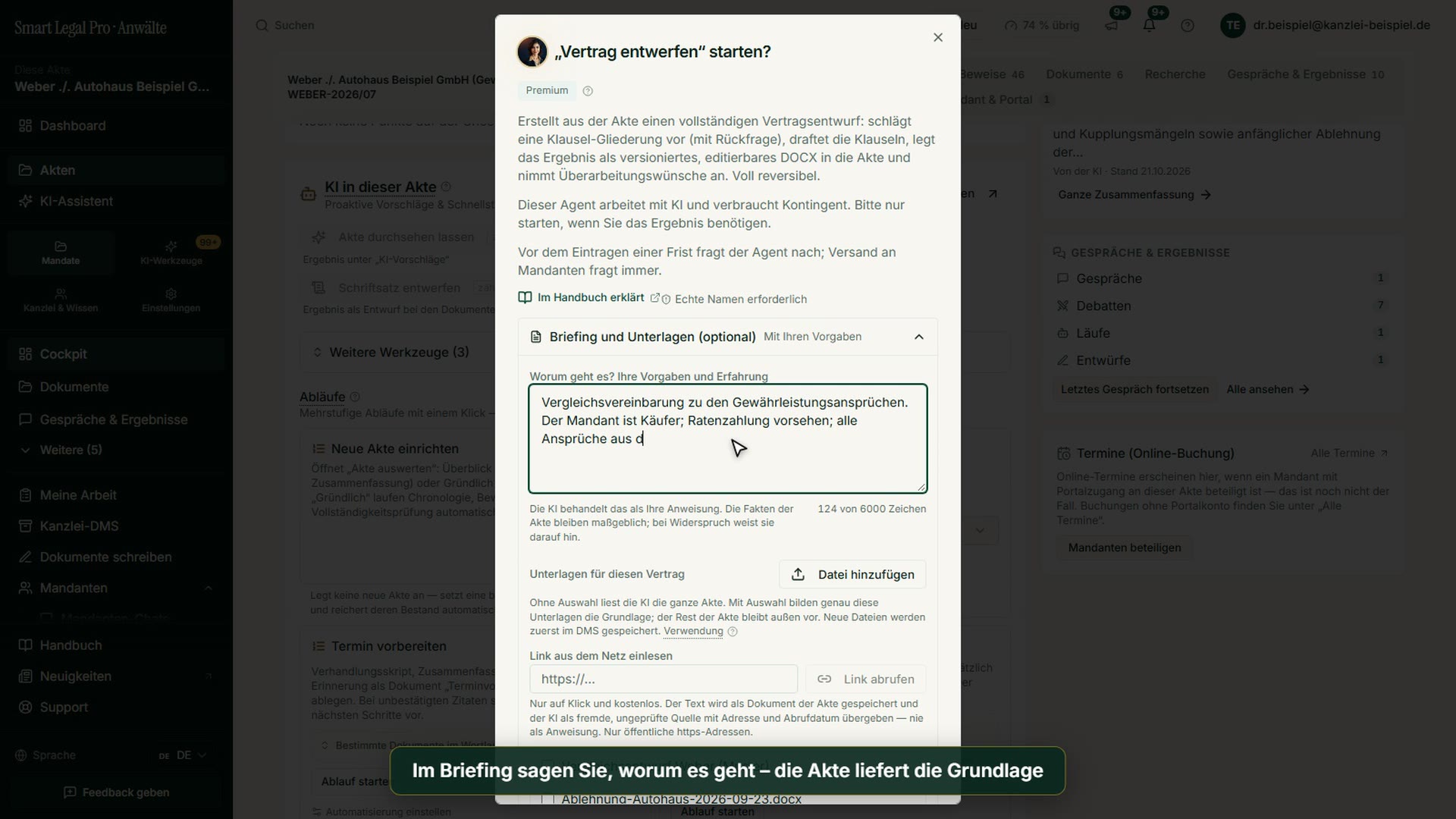
The guided draft begins with details about the document: name as a working title, type (contract, pleading, letter or other), style and tone, length from short to very long or with your own page count, as well as language and legal system. Language and legal system are prefilled from the case, otherwise from your default legal system, and can be changed. At the top, four steps show where you stand: Document, Sources, Notes and Review. Text is produced only after you have confirmed the outline and the costs.
Page of this image →To the feature: Canvas & Redline →To the feature: Pleadings & contracts →Watch the video →
Guided Draft, Step 2: Choose Case, Documents and Facts as Sources
In the second step you decide what the AI relies on: the selected case, its summary as background, several selected documents and the facts of the case. For the facts, “Automatic”, “None”, “Specific categories” and “From the selected documents” are available. With “Without case” the draft emerges from your instructions alone. This way you control which documents flow into the draft, and the result remains a draft that you review.
Page of this image →To the feature: Canvas & Redline →Watch the video →
Guided Draft, Step 3: Notes, Follow-Up Questions and Thoroughness
In the third step you give the AI notes, also by voice input, here for example on an out-of-court settlement with installment payment and a settlement clause. Below, you set how many follow-up questions the AI may ask before writing and choose the thoroughness: fast, standard or thorough. Thorough costs more quota and takes longer, while fast suits simple letters. The follow-up questions and your answers shape the later text.
Page of this image →To the feature: Canvas & Redline →Watch the video →
All recordings use fictional sample data – no real cases, people or file numbers. AI output can contain errors and does not replace legal advice. The screenshots show the English interface; sample data and documents are partly in German. Smart Legal Pro itself is fully available in German, English, French, Italian, Spanish, Dutch and Polish.
Matching videos
More categories
- Case file & facts 43
- Deadlines 13
- Pleadings & editor 40
- AI assistant 35
- Lex & Lexi 20
- Firm & DMS 52
- Research & knowledge 21
- Collaboration & sharing 21
- Client portal 33
- Settings & firm 10
- Understanding proceedings 43
- Letters & replies 11
- Creating contracts 15
- Checking a contract 6
- AI legal information 30
- Calculators 10
- Tools 35
- Legal knowledge 2
- Account & credits 12

Try it yourself
Start free, upload a letter, check a deadline – no credit card needed.

