Images
Client portal
The client portal: how clients comment on versions, share documents and follow progress — and how the firm controls access and data protection.
Tip: click an image to open it large – use the arrow keys to move on.
Portal einrichten
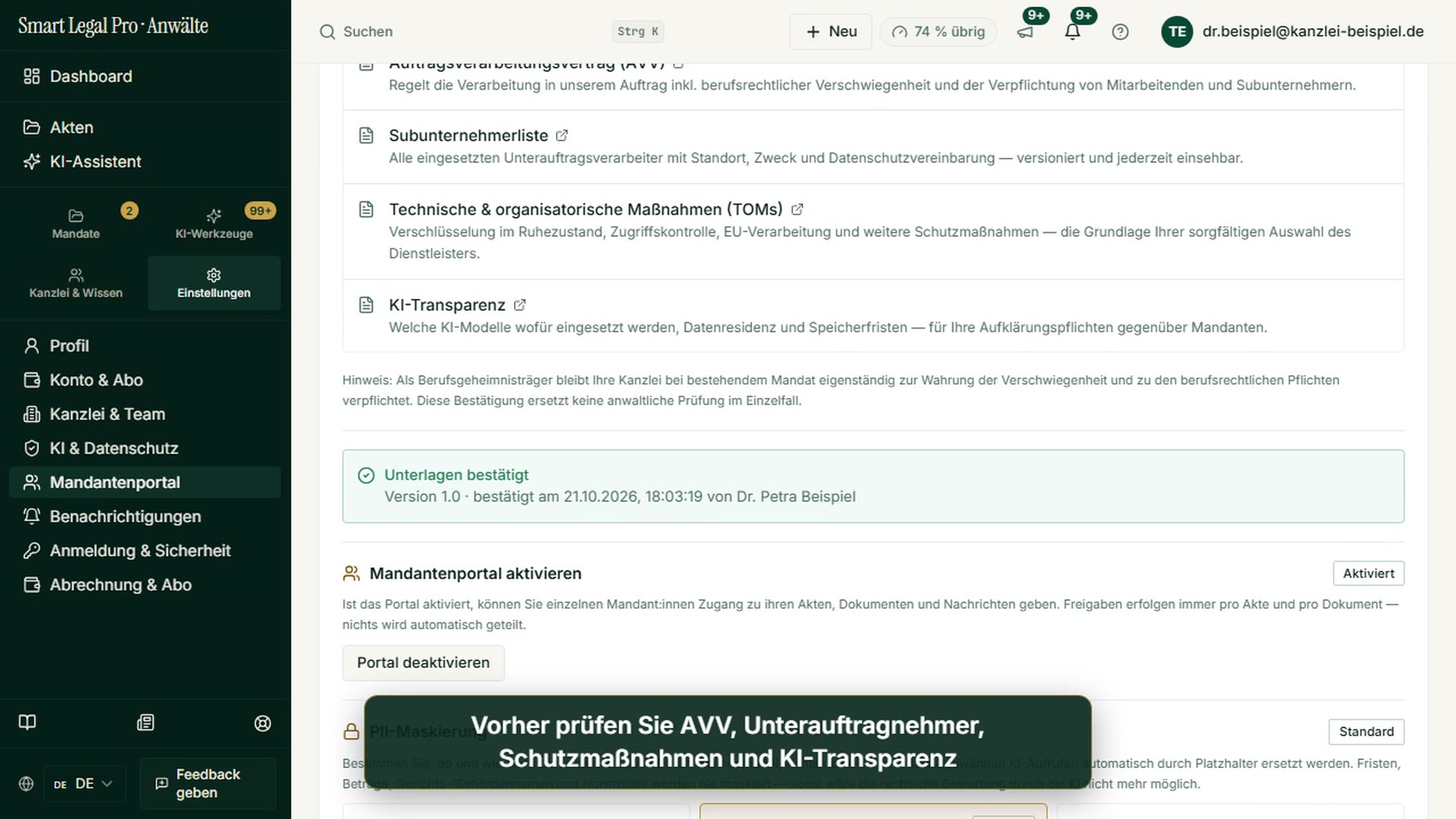
Images: 2Enable the Client Portal: One-Time Confirmation of the Privacy Package
In the settings under “Client portal” there are four linked documents: the data processing agreement, the subprocessor list, the technical and organizational measures and the AI transparency. You read the documents, tick the box and confirm the package; only then does your firm use the client portal. This records that the firm has taken note of the documents on confidentiality and data processing, and you reach an activity and access log from there. The note in the image stresses that this confirmation does not replace a lawyer’s review in the individual case and that the firm, as a bearer of professional secrecy, remains responsible.
Page of this image →To the feature: Client portal →Watch the video →
Case file tab “Client & Portal”: decide per case what the client sees
The “Client & Portal” tab of a case file shows what your client sees for this case; you decide for each area individually whether it is visible. In the picture, the firm’s client portal is not yet switched on, so the page only shows what the portal would do for the case and leads via “Open portal settings” to the settings. Three benefits are named: clients upload documents themselves and the AI reads them only after your release, messages run in the secured area instead of by email, and for each document it is logged when it was opened through the portal. The firm decides on switching it on; clients see something only once you release it individually.
Page of this image →To the feature: Client portal →Watch the video →
Mandate aufnehmen
Images: 5Create a Client: Master Data Independent of Portal Access
The “Clients” page holds the master data of your mandates, independently of the client portal; in the image the form for a new client is open. You choose the type (private person, organization or authority), enter the name and optionally add email, phone, file number or reference and internal notes, and expand further details as needed. This keeps contact details and notes structured in one place. The note “Client portal not active” shows that no portal access can yet be granted in this image; via the buttons above you reach client chats, requests to clients, online appointments, the mandate inbox and the mandate marketplace.
Page of this image →To the feature: Client portal →Watch the video →
Conflict Check: Compare Names Against All Cases, Blocklist for Requests
On the “Blocklist for mandate requests” page the conflict check sits at the top: you enter the name of a person or company, and the check compares it with clients, opposing parties and opposing counsel of all cases of your firm that you may see. It is free, runs without AI and, according to the page, is also carried out automatically when a case is created and documented in the case header. Below, you block people by user ID for the mandate marketplace; they are then no longer suggested to you and cannot be unblocked. The comparison is nearly exact and does not find abbreviations or other spellings; the conflict check under § 43a (4) BRAO (German Federal Lawyers’ Act) remains your own duty.
Page of this image →To the feature: Conflicts & Compliance →Watch the video →
Requests to clients: all open requests across case files in one place
The “Requests” page gathers all requests to your clients via portal and magic link in one list. Each row states the type – document request, document review, upload from third parties, client follow-up question, client conversation or draft return – along with the channel, the status and the case file. With the filters you narrow the list by type, channel and status and sort by date; one click leads to the relevant case file. This shows you at a glance what your clients still need to answer and where “Reply received” is waiting for your review.
Page of this image →To the feature: Client portal →Watch the video →
Invite clients: portal access, master data and assignment in one place
On the “Clients” page, you enter the email address, optionally add a personal message, choose the language of the invitation and invite the client to the client portal with one click. Below are the clients with portal access, each with the number of case files, last activity, assignment to a colleague, master data and the option to deactivate access. Clients without portal access you keep as pure master data and invite later. Shortcuts at the top lead to client chats, requests to clients, online appointments and the matter inbox.
Page of this image →To the feature: Client portal →Watch the video →
Mobile: open requests to clients on your smartphone
On a smartphone, the filters for type, channel and status are at the top, followed by each open request as its own card with title, type, channel, status and the associated case file. The close icon and the jump into the case file are directly within reach on each card. This keeps you on top, even on the move, of what your clients still have to deliver or answer.
Page of this image →To the feature: Client portal →Watch the video →
Kontakt und Unterlagen
Images: 1Contact client: five ways via link without sign-in
From the case file, “Contact client” opens a window with five cards: Request documents (marked as recommended), Have questions answered, Have a document reviewed, Hold a conversation and Short message. You choose the card that fits your matter, and the client receives a link for which no sign-in is needed; for documents, the uploads land directly in the case file. This saves email attachments and keeps communication about the case in one place. The lower part of the window lists the previous requests and conversations for this case, and in the picture there are none yet.
Page of this image →To the feature: Client portal →Watch the video →
All recordings use fictional sample data – no real cases, people or file numbers. AI output can contain errors and does not replace legal advice. The screenshots show the English interface; sample data and documents are partly in German. Smart Legal Pro itself is fully available in German, English, French, Italian, Spanish, Dutch and Polish.

More categories
- Case file & facts 43
- Deadlines 13
- Pleadings & editor 40
- AI assistant 35
- Lex & Lexi 20
- Contracts 26
- Firm & DMS 52
- Research & knowledge 21
- Collaboration & sharing 21
- Settings & firm 10
- Understanding proceedings 43
- Letters & replies 11
- Creating contracts 15
- Checking a contract 6
- AI legal information 30
- Calculators 10
- Tools 35
- Legal knowledge 2
- Account & credits 12

Try it yourself
Start free, upload a letter, check a deadline – no credit card needed.

